
Track Planner
First Track
Plan your first oval, understand track status and save your draft.
Plan your first track
Build your track from rail pieces in the Track Planner. Start with a simple oval; you can add special pieces later.
- Choose your track system at the top left, for example Carrera Digital 132.
- Click a straight in “Parts Palette” on the left. It appears on the canvas.
- Select the open end and add more straights or curves.
- Keep building until the last open end leads back to the beginning of your track. Watch the track status.
- Click “Save” in the “File” toolbar group.
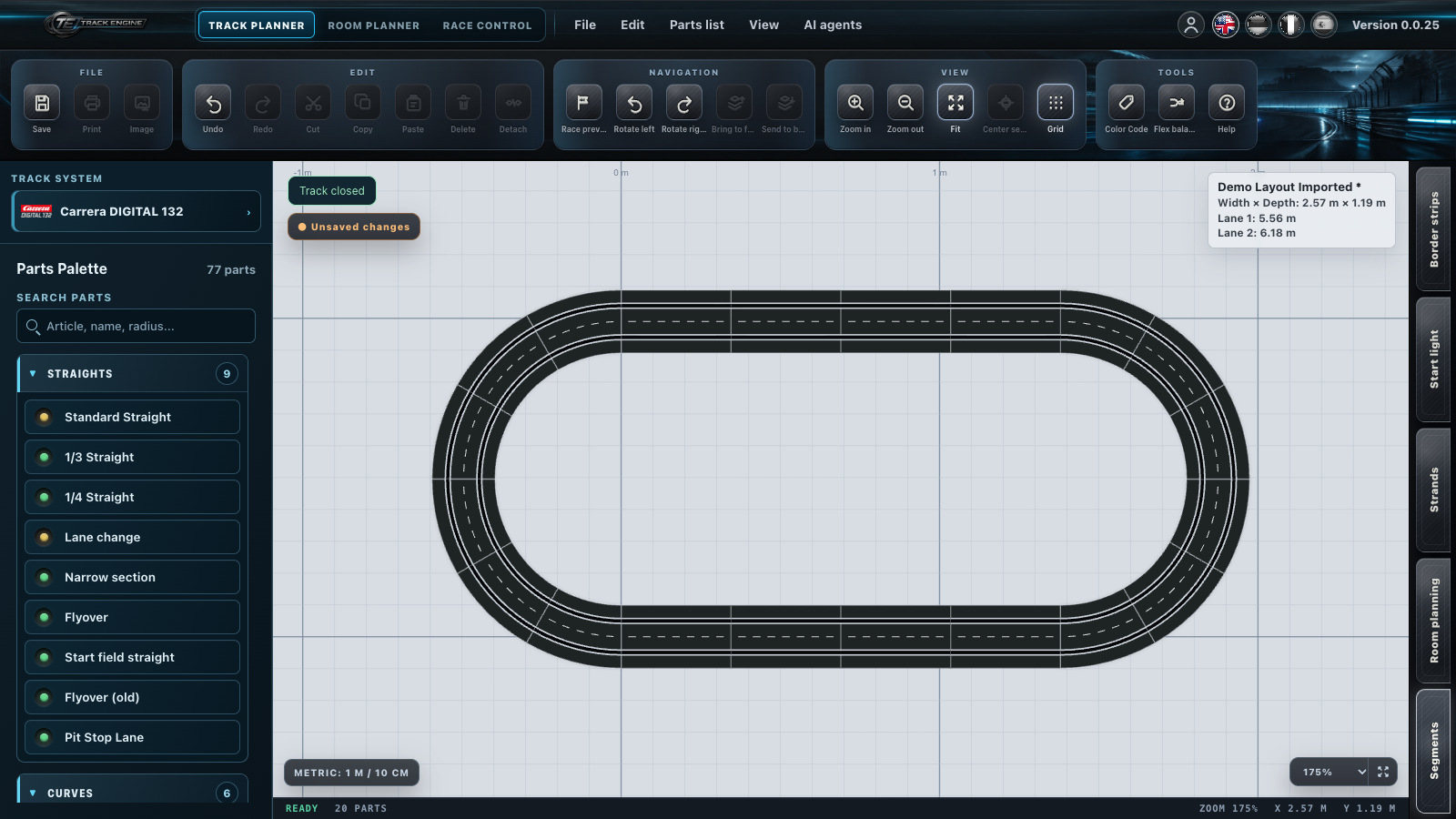
Your first oval is ready when all required connections are closed and “Track closed” appears. You can also save an unfinished draft.
If the next piece is in the wrong place
First look at which open end is selected. Select the intended end and choose the appropriate piece again.
Understand the three track statuses
- Green – Track closed: All required track connections are closed.
- Orange – Flex compensation available: Orange does not mean “almost closed”. It only means Track Engine can attempt a Flex adjustment here.
- Red – Track open: At least one required connection is open.
Closing the track and Flex adjustment explain what to do next.
Find suitable pieces
Your track system determines the available pieces. Start with straights and curves. Add border strips and special pieces once the basic shape fits. See Parts Palette.
Allow room for the build
The pieces you insert determine your track’s size. Leave extra space for border strips, connections and access to the track. From room to track helps you compare it with your room.
Develop your draft
Save a manageable version before extending the track. Lane colours help you find your way; they do not prove that the track is closed. Flex can also refine an already closed track.
Saving and opening layouts explains how to find your draft again.
Was this page helpful?