
Track Planner
Closing the Track
Connect every required track path and distinguish open, closed and available Flex adjustment.
Connect the whole track
Bring open ends together to form a complete lap. The track status is what matters, rather than the picture alone.
- Find the open connection in your layout.
- Add or change pieces until the ends fit together.
- Read the track status: green means “Track closed”, orange “Flex compensation available”, red “Track open”.
- If Flex is offered, you can apply the Flex adjustment. Read the status again afterwards.
Orange does not mean “almost closed”. It only means Track Engine can attempt a Flex adjustment here.
You are done when “Track closed” appears and all required track paths are closed.
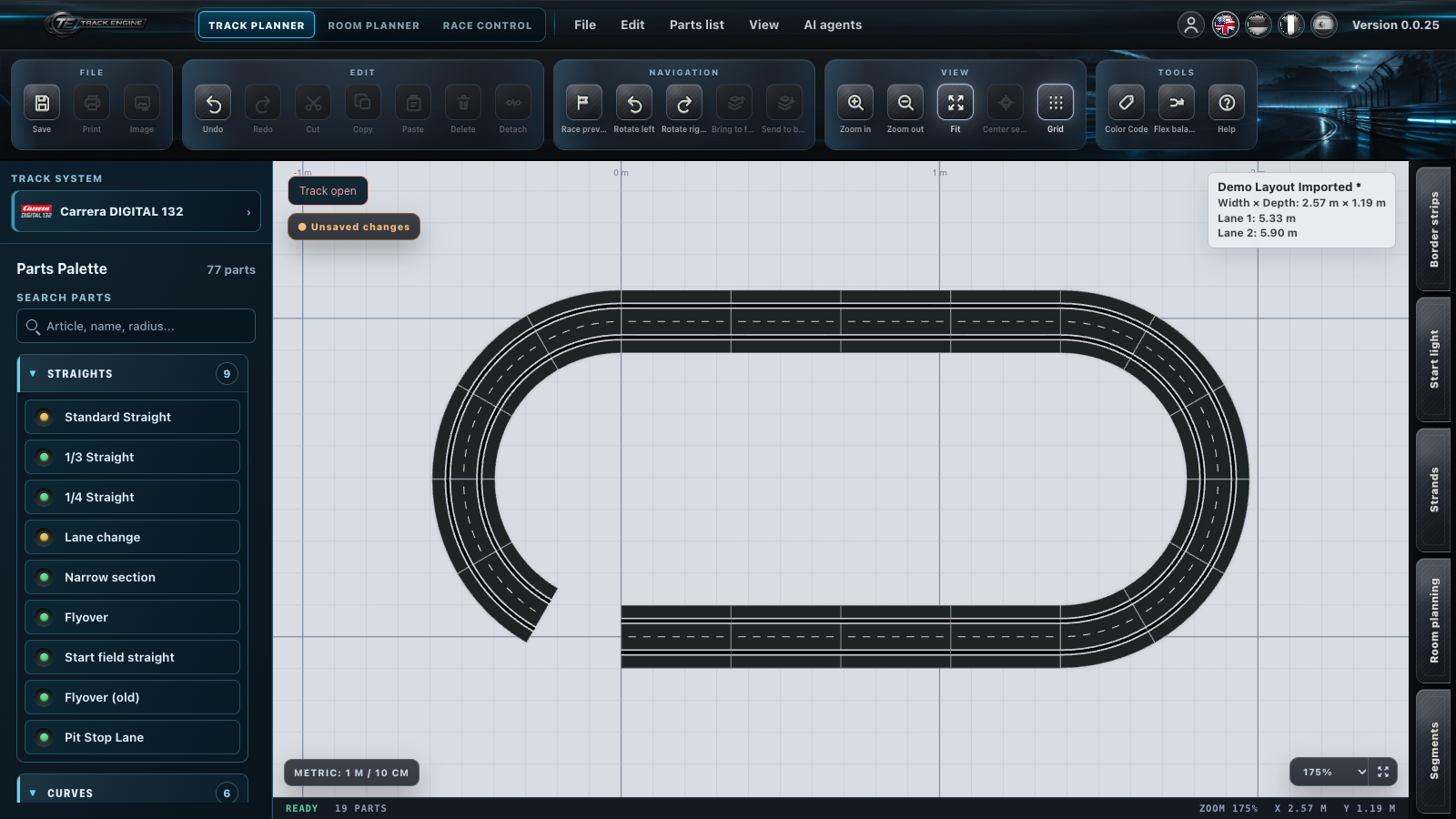
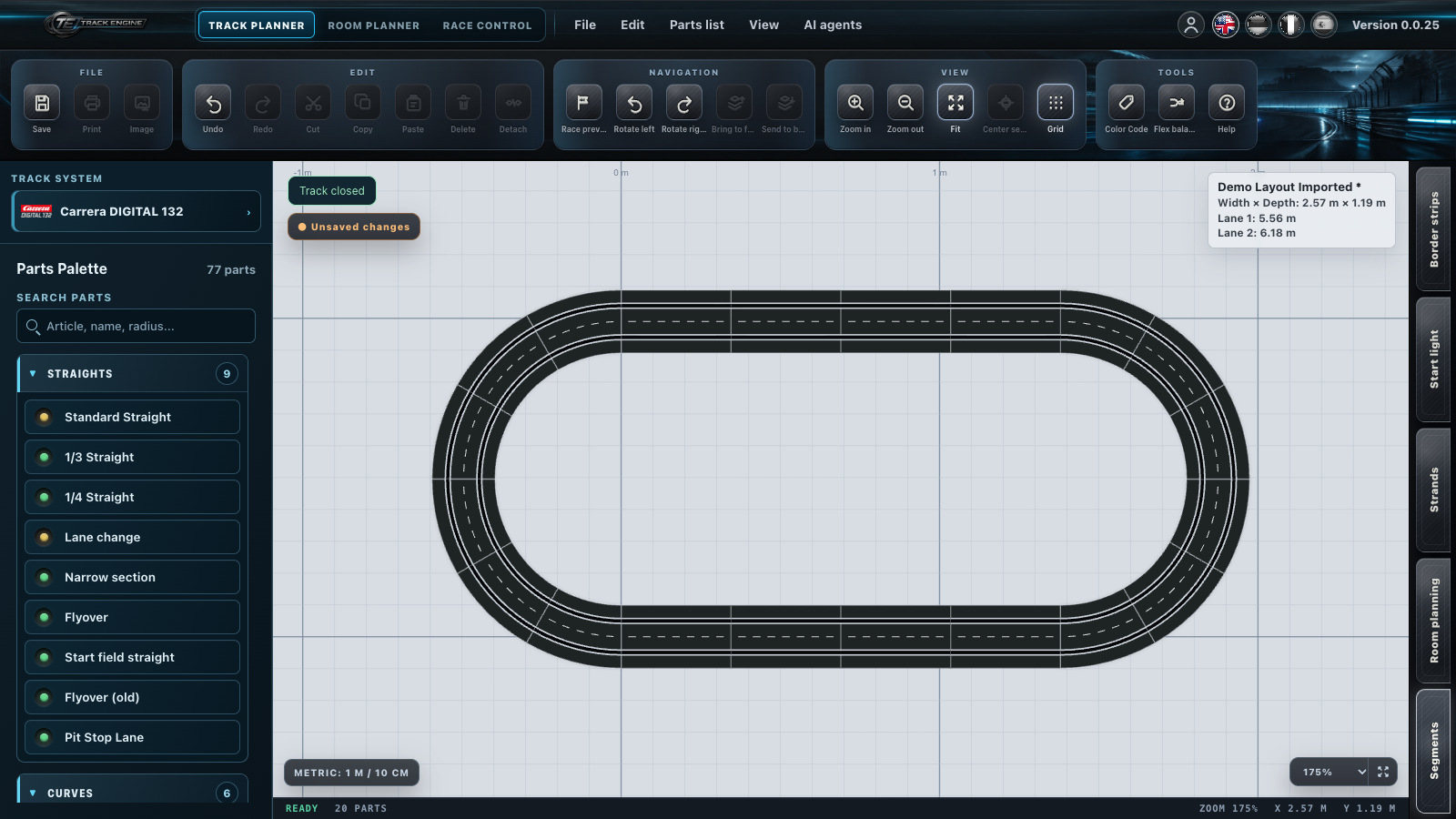
If the ends look closed
First zoom in on that area. Ends that are close together or overlap are not automatically connected.
Orange offers an adjustment
“Flex compensation available” means Track Engine offers an adjustment. Only the status after applying it tells you whether the track is closed. If no adjustment is offered, change the sequence of pieces or the connection.
Close every required path
With multiple track paths, all required paths must close. A completed main oval is insufficient if another required path remains open.
Lane colours show which lane is which. A continuous colour does not replace a closed connection. See Multi-lane tracks.
Find an open connection methodically
Start at an open end and follow the track to the next incomplete connection. At lane changers and branches, pay attention to the chosen variant and the direction of the connected pieces.
A bridge or a visual crossing does not connect the rails lying above one another.
Closed and fitting are separate questions
A closed track may still fit your available space poorly. Flex can also refine an already closed track. Compare the result with your support surface and physical rails.
You can already save an open draft and continue later.
Was this page helpful?