
Track Planner
Save and Open Layouts
Save and reopen your draft and work together in your workspace.
Keep your draft and find it again
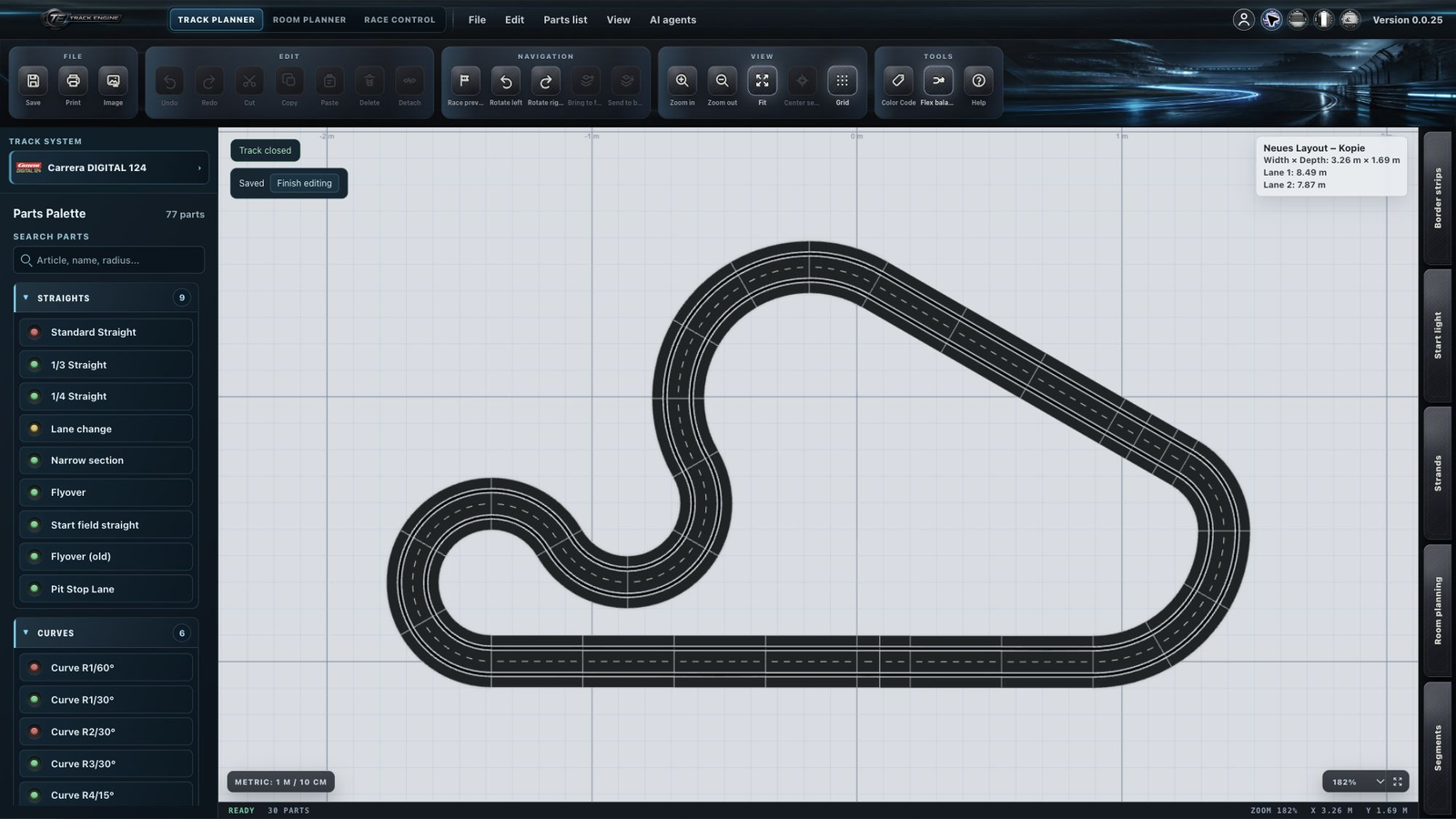
Sign in to save your layout to the cloud. You can save a track that is still open.
- Open the “File” menu and choose “Save layout to cloud”.
- When saving for the first time, enter a name in the save dialog and confirm. For an existing own layout, save your changes.
- Wait for visible confirmation, such as “Saved”.
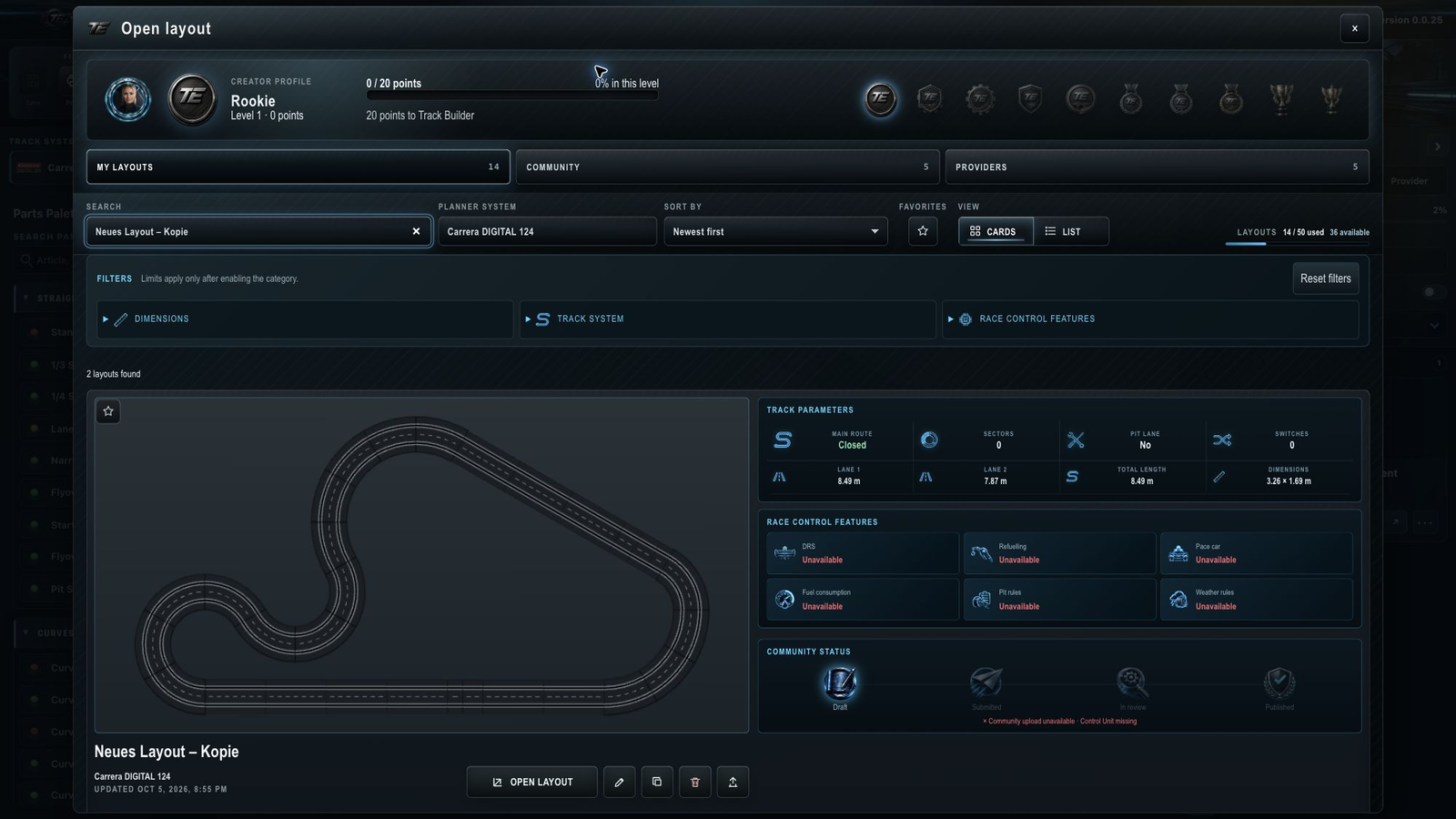
- In the “File” menu, choose “Open cloud layout...” and select the appropriate card under “My layouts”.
- Choose “Open” on the card.
You are done when your layout is saved and you can reopen it from the library. Leave your draft only after Track Engine has confirmed that it was saved.

Save
Save here
If saving fails
First see whether you are signed in, connected and your displayed session is ready for editing. Look for a message about your layout limit too. An error message does not mean the layout was saved.
Choose the right library
My layouts belong to your workspace. They include your saved drafts and available actions such as opening, renaming, duplicating and deleting.
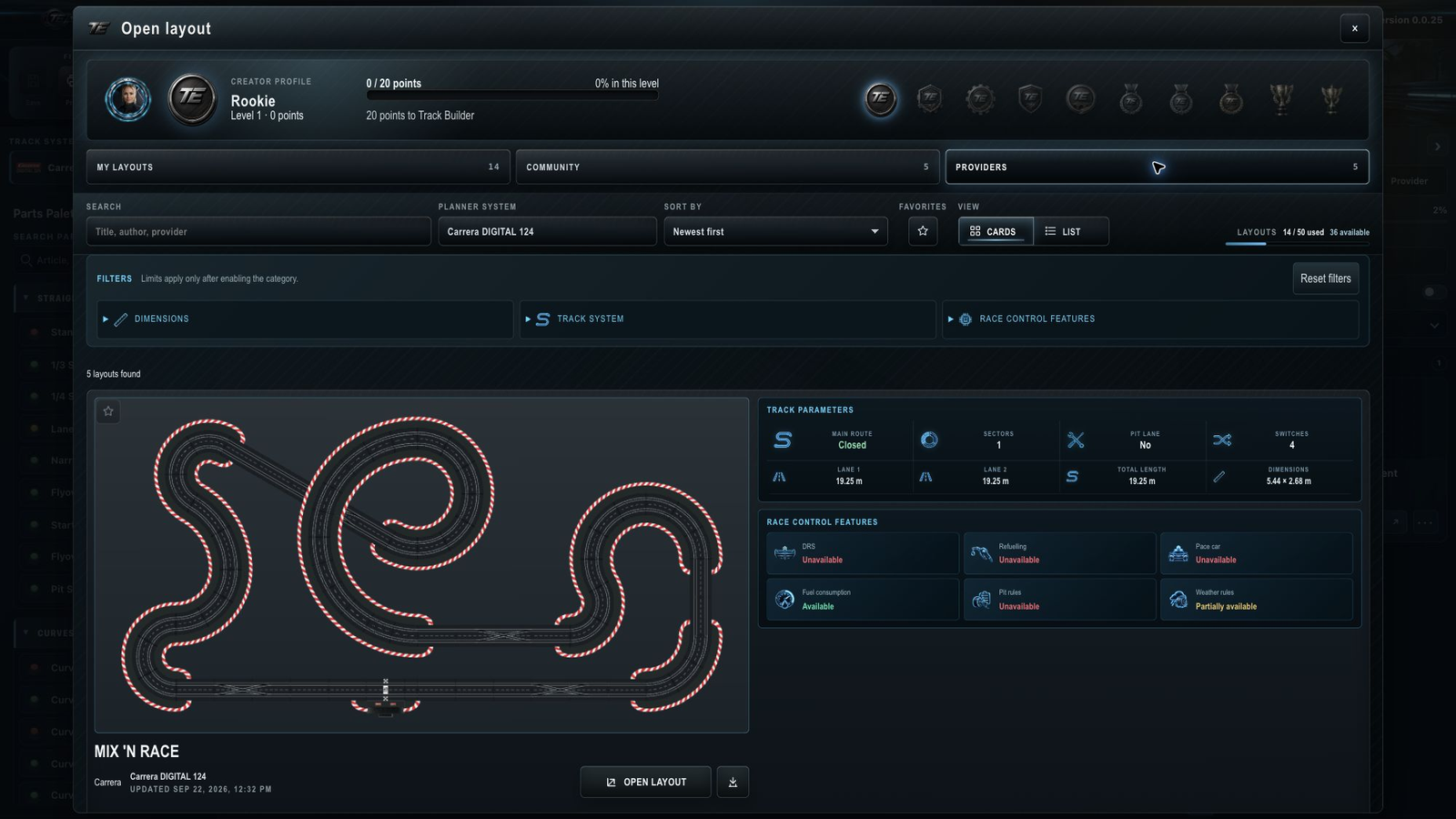
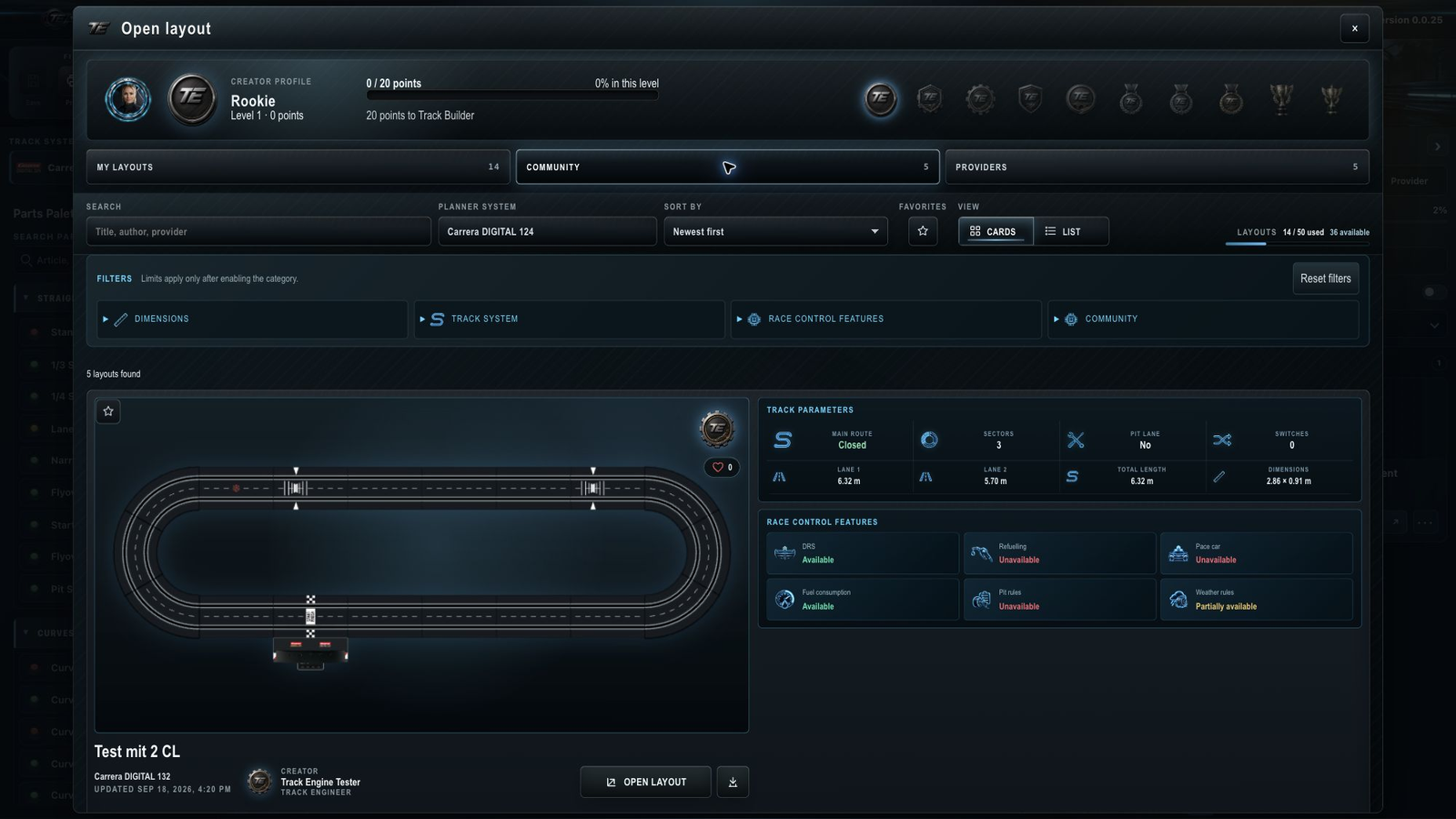
Providers contains supplied provider layouts. Community contains published layouts from other users. Opening these layouts does not replace the published original; follow the available options for using and editing them.
Understand automatic saving
While you have a layout open and are allowed to edit it, Track Engine can save your changes automatically. You need to be signed in and connected to the internet. If an error occurs or the connection breaks, do not rely on an earlier save status.
Work together
A workspace is your shared Track Engine area for layouts, segments, drivers, vehicles and tracks. Only one person can edit a layout at a time.
If it is already being edited, follow the displayed message. After saving, use “Finish editing” to release it for others. See Workspace and roles.
If a saved layout is missing
Look at the active workspace and selected library area. Clear search fields or filters that might hide the card. If saving failed, read the message before leaving your draft.
You can later use your layout for a race. A saved draft is not automatically a fully closed or physically verified racing track.
Related articles
Was this page helpful?