Race Control
Using the racing database
Save drivers, vehicles and your own tracks for races.
Keep your racing information together
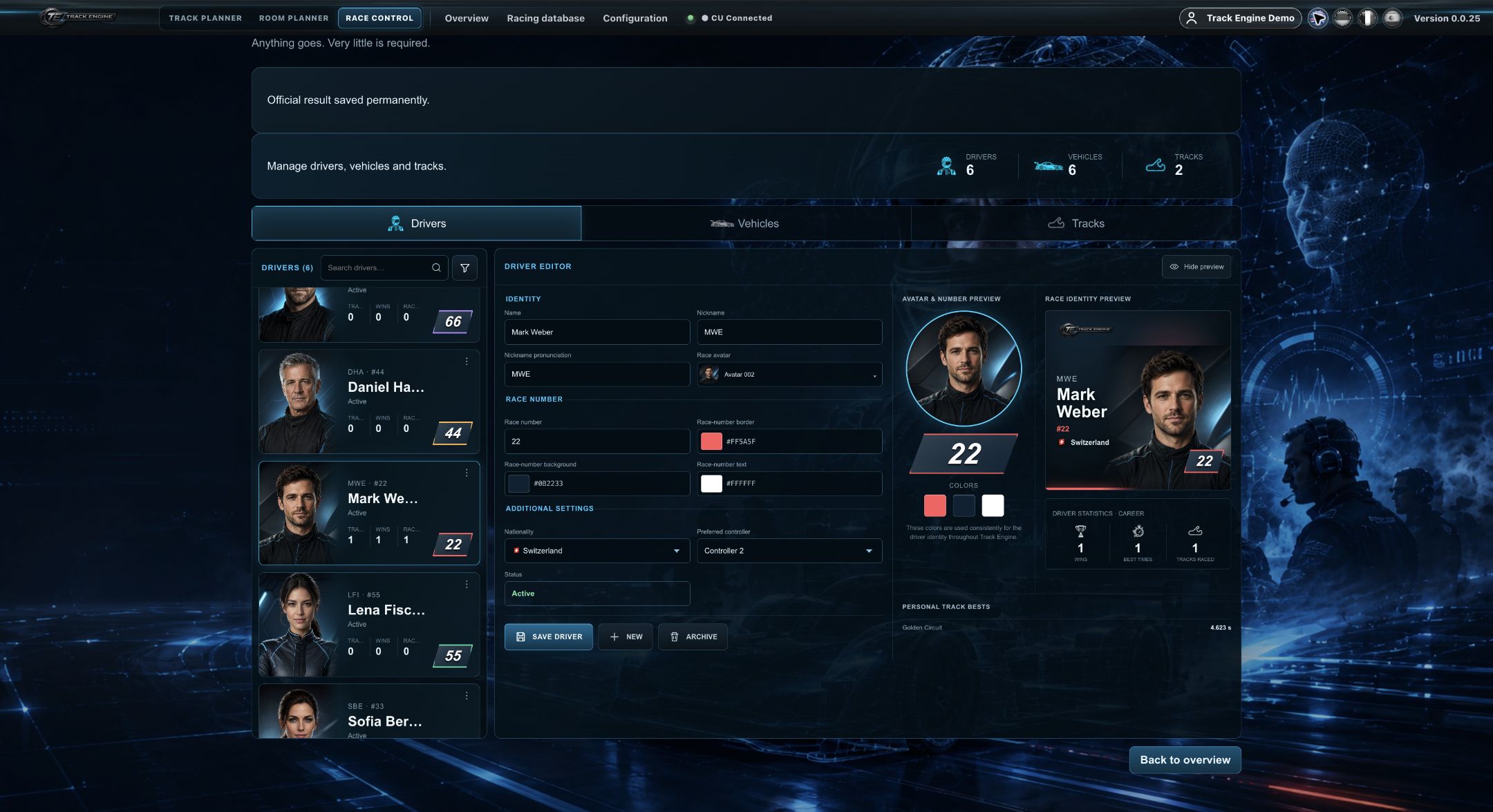
In “Racing database”, Race Control finds the drivers, vehicles and tracks for your races. You can reuse these entries later.
- Open “Race Control” and “Racing database”.
- Start under “Drivers” with the people who will drive.
- Under “Vehicles”, create the cars you will use.
- Under “Tracks”, choose “Add track · open layout” and add a saved own layout.
- Open “Quick race” and choose the appropriate entries for your race.
You are done when the drivers, cars and track appear in their lists. The track still needs a physical check before the actual race.
If an entry is missing
First clear searches and filters. Also look at whether you are in the right workspace and whether the entry is archived.
Reuse drivers, vehicles and tracks
A driver is a person, a vehicle is their car. The track is the saved layout you want to race on. You do not need to create these entries again for the next race; still make each race selection deliberately.
Confirm the driver, car and controller assignment before starting.
Add a track to Race Control
The add action opens the layout library. Select a saved own layout there. Save a provider or community layout as your own layout first.
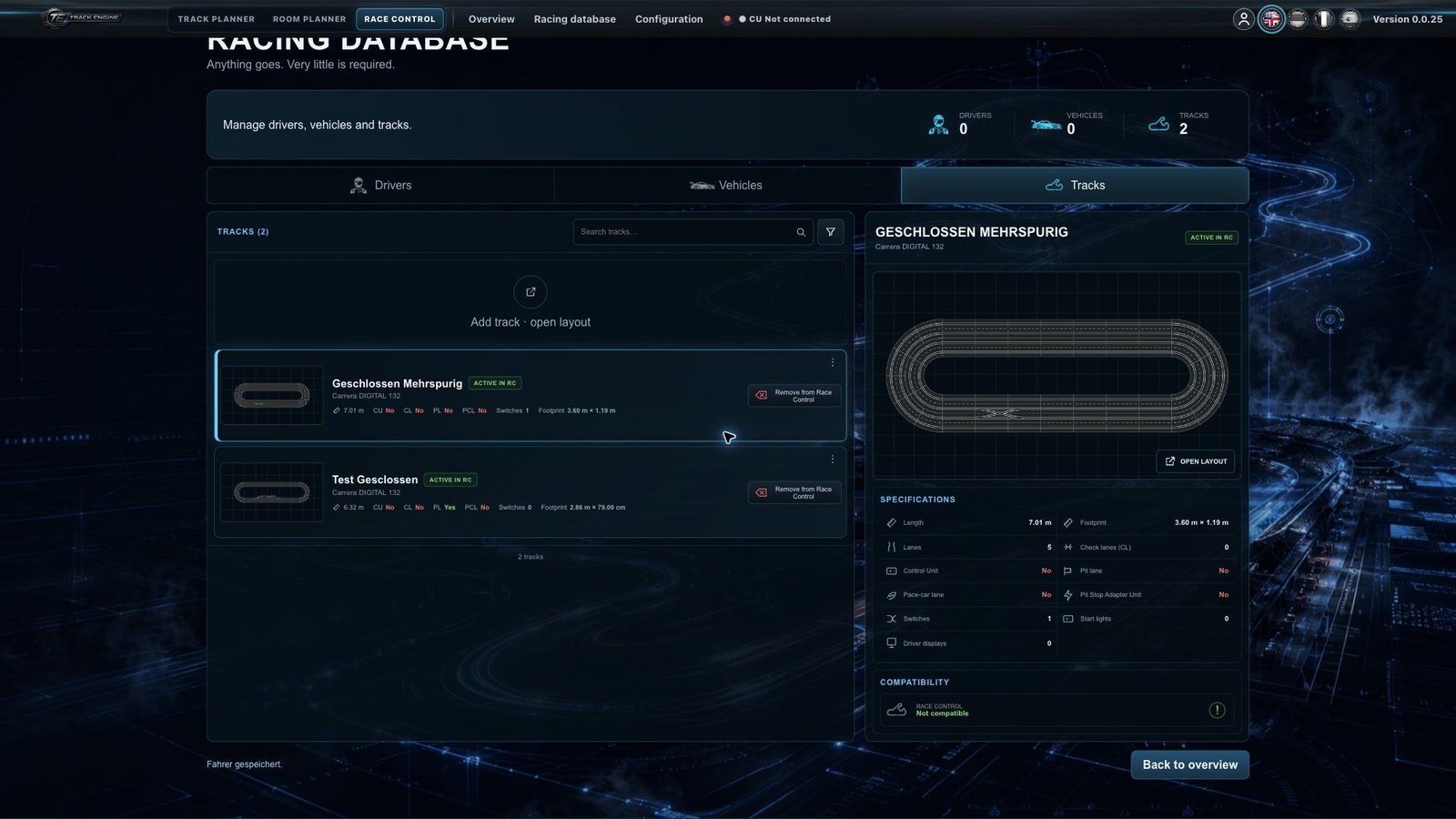
The displayed components explain possible functions. Only the track check in Quick race tells you whether the physical build is ready.
Prepare vehicle images for the racing database
A cutout image gives a vehicle a cleaner, more professional appearance in the racing database. This example compares a photo with its surroundings to a PNG with a transparent background. The vehicle-management interface and the steps for adding a vehicle remain unchanged.
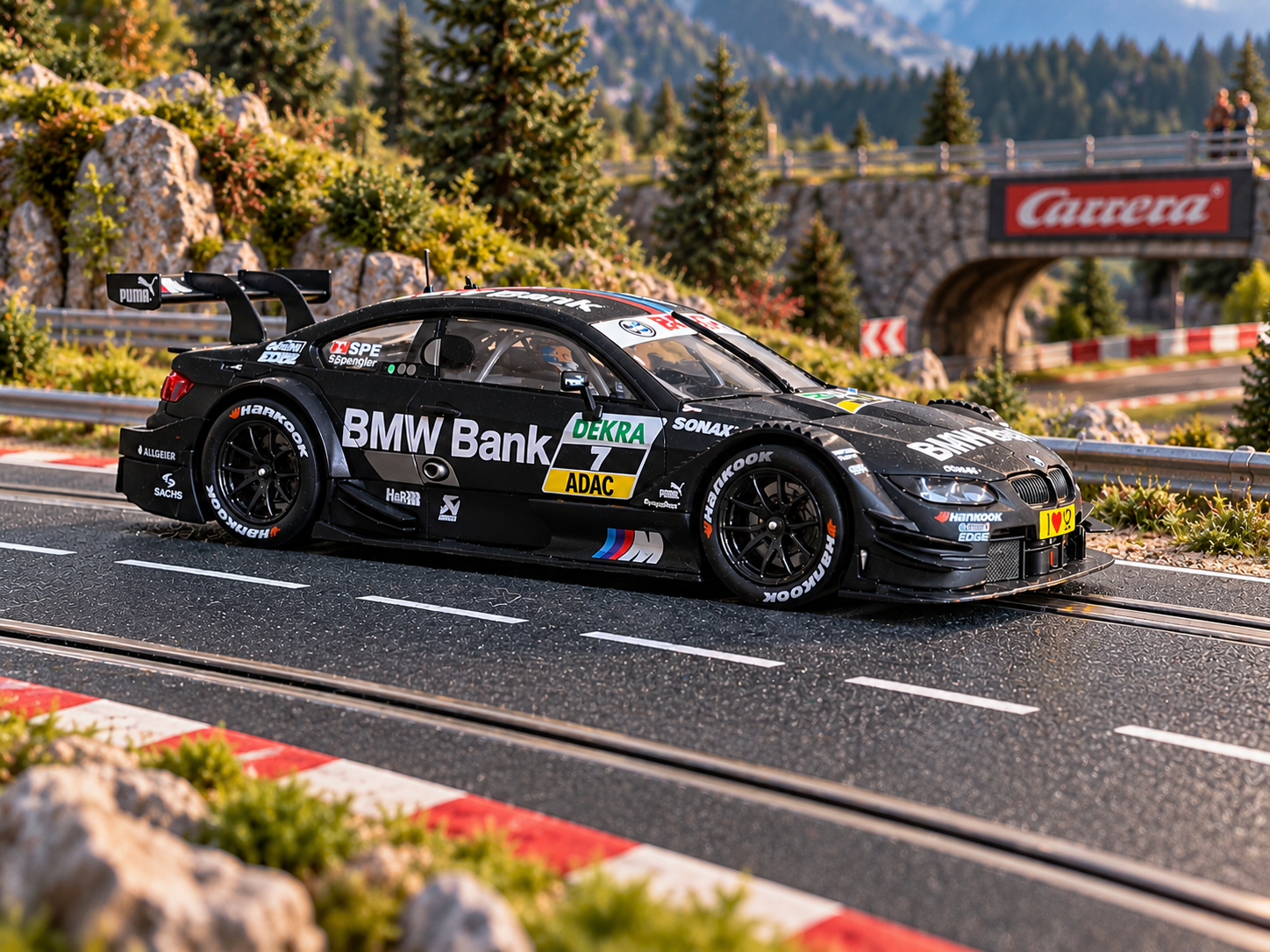
Before: vehicle in its surroundings
The vehicle is photographed together with the track and its surroundings.
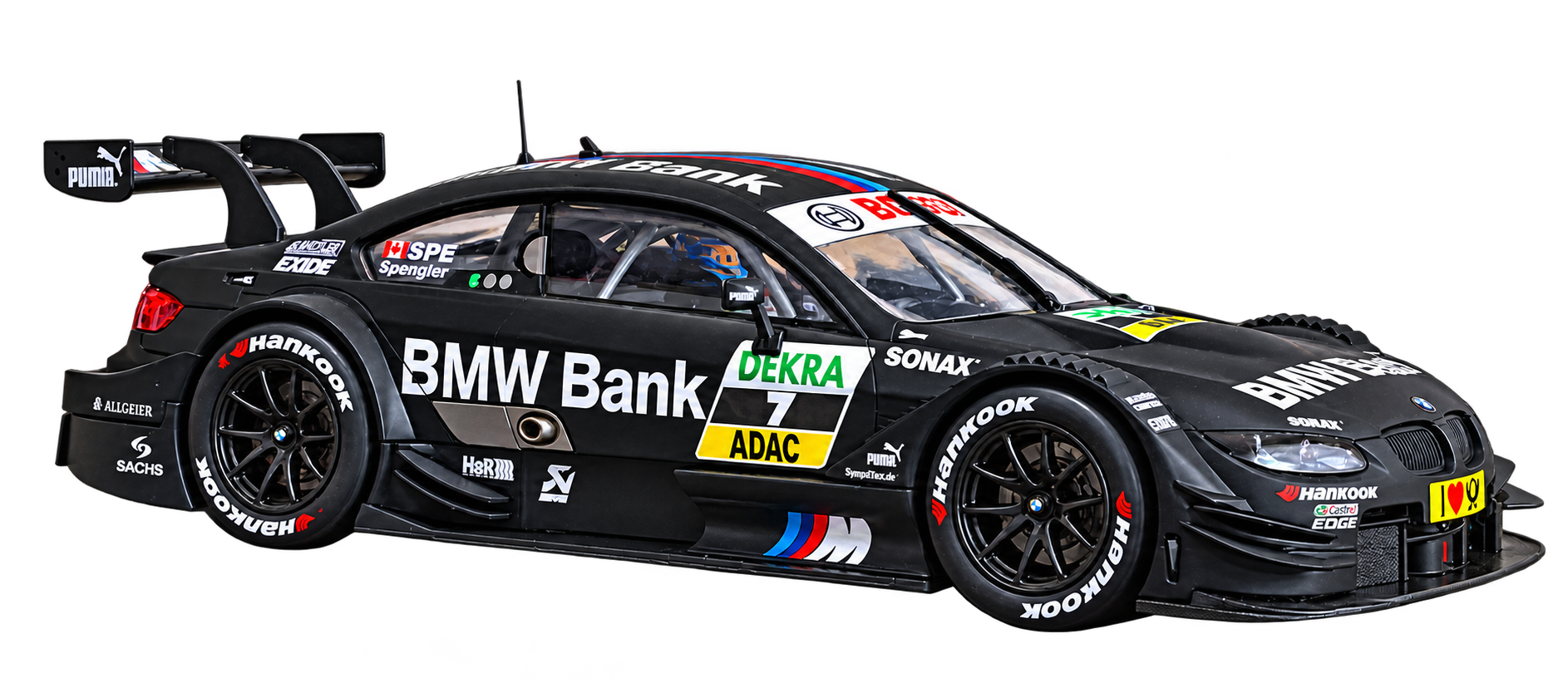
After: transparent cutout
The vehicle itself is preserved and separated from its background; PNG transparency is retained.
You do not necessarily need paid image software: many AI services offer free entry-level plans. Available features and usage limits vary and may change.
- Practical example: ChatGPT by OpenAI (external link). Upload your vehicle photo, paste the English prompt below and request a PNG with a transparent background. Image editing is also available on the free plan within its current upload and image limits.
- Further help: Claude by Anthropic (external link). The free version can also help you analyse the photo and write suitable editing instructions. Direct background removal and transparent PNG export depend on the tools available there.
Review the result before using it: logos, lettering and vehicle details should remain intact, and the PNG must contain real transparency.
Prompt for a professional vehicle image
The prompt is in English so you can copy it directly into an image tool.
Use the uploaded photograph as the sole visual reference. Precisely isolate the black BMW M3 DTM slot car from its original background and racetrack. Preserve the vehicle's exact geometry, proportions, viewing angle, perspective, bodywork, aerodynamic components, rear wing, wheels, tires, windows, cockpit, driver, antennas, headlights, and all original sponsor logos, lettering, racing numbers, colors, and decals. Do not redesign, reinterpret, replace, invent, or omit any vehicle details.

Create an ultra-photorealistic, premium commercial automotive product photograph with professional studio-quality lighting. Enhance sharpness, micro-details, material textures, realistic reflections, paint finish, carbon-fiber surfaces, tire rubber, and natural contrast while maintaining the authentic appearance of the original miniature slot car. Retain realistic signs of physical scale and material properties without making the model look like a full-size vehicle.

Remove the entire original background, including the Carrera track, rails, furniture, floor, and all surrounding objects. Export the isolated vehicle as a high-resolution PNG with a genuine transparent alpha channel (RGBA). Do not use a black, white, checkerboard, or simulated transparent background.

Add only a very subtle, physically realistic, soft contact shadow directly underneath the tires and lower body, fading smoothly into full transparency. Preserve delicate edge details and avoid halos, artificial outlines, excessive sharpening, floating effects, or harsh shadows.

Keep the complete vehicle visible with generous transparent margins, centered horizontally. Deliver a clean, production-ready transparent PNG suitable for premium e-commerce product listings, website hero sections, and Track Engine marketing materials.
Then use the existing vehicle-management interface in the racing database to assign the reviewed image to the correct vehicle.
Work together in your workspace
Members of the same workspace use the same racing database entries. Agree on changes so drivers and cars are selected correctly at the next race. See Workspace and roles.
Historical results keep their context
An archived driver or vehicle can still appear in older results. Look for an existing entry before creating the same person or car again.
After rebuilding a track, compare the selected plan with the physical track again. A database entry alone does not mean “race-ready”.
Related articles
Was this page helpful?