
Race Control
Assigning drivers, vehicles and controllers
Assign each person the right car and the controller actually used.
Assign the person, car and controller correctly
A driver is the person. A vehicle is the car. A controller is the physical Carrera hand controller used to drive that car.
- Open “Racing database” and “Drivers”.
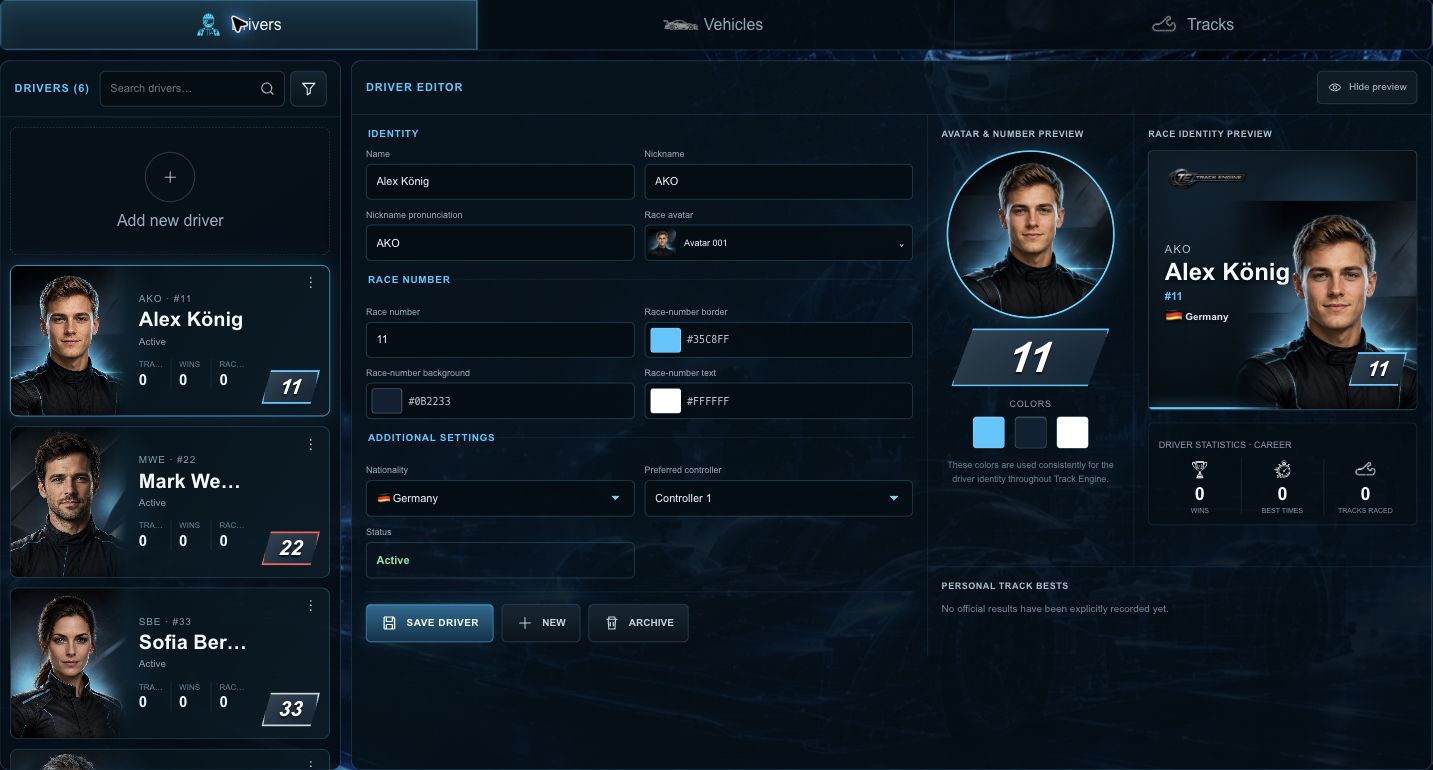
- Choose “Add new driver”, enter the name and choose “Save driver”.
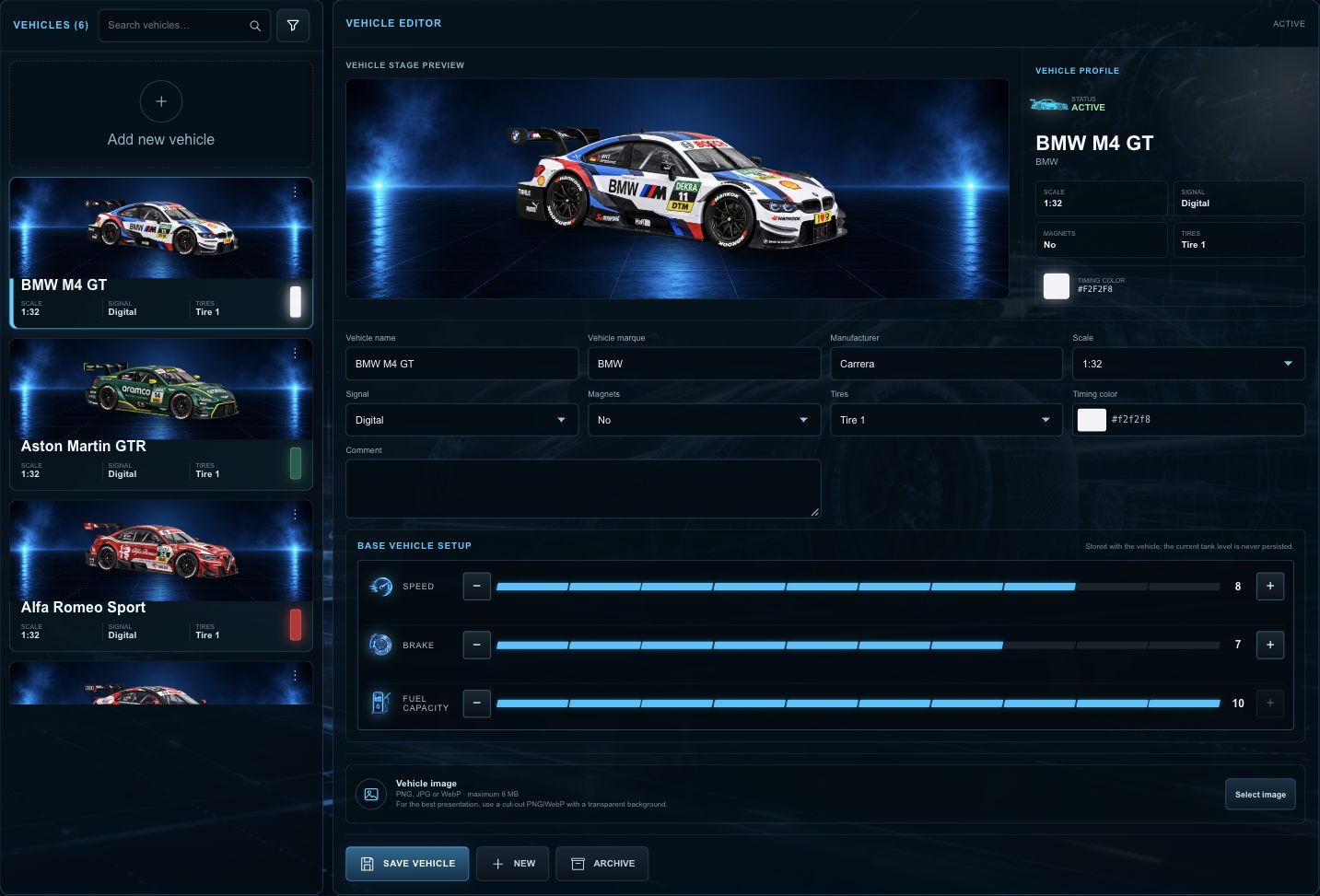
- Create the car under “Vehicles” and choose “Save vehicle”.
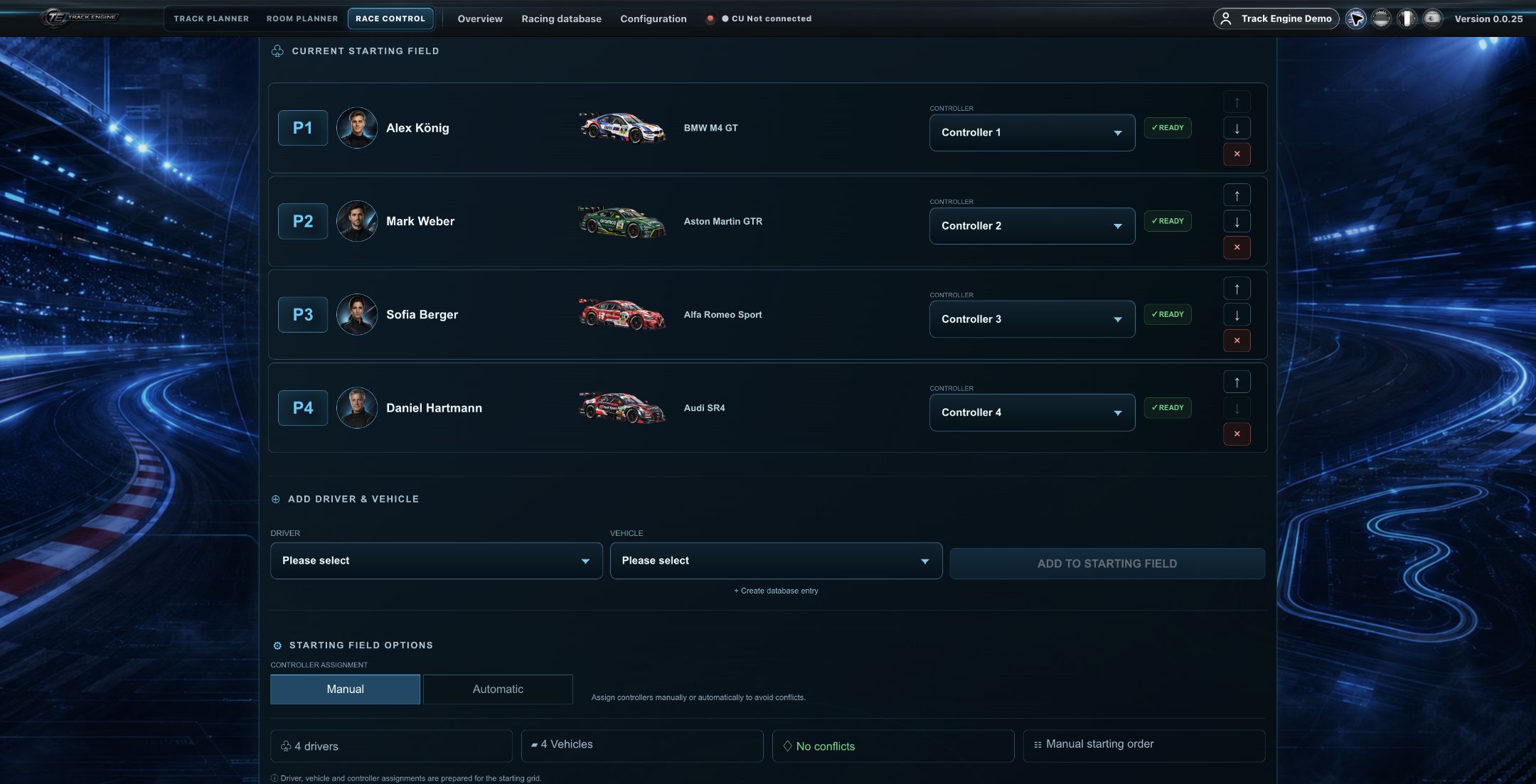
- In the quick race starting field, choose the driver and their vehicle. Add them to the field.
- Set the controller number to the hand controller actually used.
You are done when each person appears with the correct car and controller. The controller number in the starting field must match the hand controller that actually drives that car.
The image comes from an Event configuration. It demonstrates the same driver, vehicle and controller assignment principle used in Quick Race.
No lap time or the wrong driver?
- Is the CU connected and ready?
- Is the correct driver selected?
- Is the correct vehicle assigned?
- Does the controller number match the hand controller used?
- Then drive across Start/Finish again.
Create clear driver and car entries
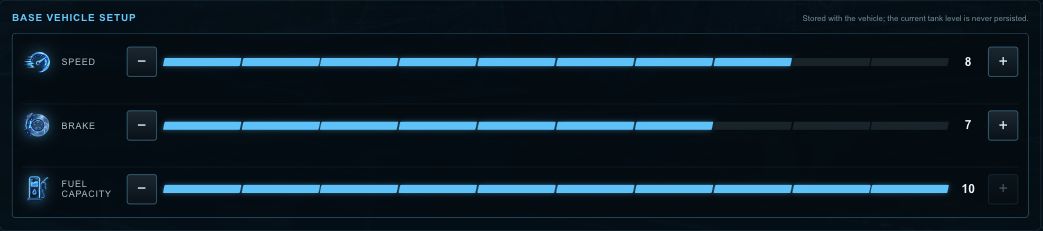
Use distinctive names. Race numbers, colours and avatars help identify people. For vehicles, you can add details such as scale, tyres or a base setup.
A preferred controller is a suggestion
A saved preferred controller can help with assignments. It does not program the physical car. Always compare the current number with the hand controller actually driving the car. Automatic assignment does not replace this comparison either.
Program the real car for your controller
For Carrera DIGITAL 124/132 with a Control Unit:
- Put only the car you want to program on the track.
- Switch on the CU.
- Press CODE once on the CU. The first LED lights up.
- Press the lane-change button once on the controller that should drive this car.
- On cars with lights, the lights flash; CU LEDs 2–4 light up in sequence. A steadily lit middle LED confirms the assignment.
Then select the same controller number in Track Engine. Track Engine’s controller selection does not program the physical car. Pairing a wireless controller with its receiver is a separate step and does not replace car programming.
When a driver or car changes
Update the selection for the next race. A driver’s race number is not their controller number. For example, driver number 12 can use controller 2.
If assignments match but no time appears
Look at whether the CU has entered standby. Once it is ready again, inspect the selected track and drive normally across Start/Finish. Required Check Lanes must be detected if you expect sector times.
Prepare the physical car and controller according to your Carrera system’s instructions. See Your first quick race for the remaining steps.
Related articles
Was this page helpful?