CARRERA DIGITAL HARDWARE
Carrera Check Lane: sector times, setup and Track Engine
The Carrera Check Lane measures sector times on your DIGITAL track. This is how you install them, define sectors on the Control Unit and use them with Track Engine (sector times, DRS).
Carrera DIGITAL 124/132 Check Lane (20030371) · ~9 min read · Updated: 13 October 2026
A Check Lane divides a lap into timed sections. Install it anywhere on the track, then assign its measurement point at the Control Unit.
This article covers installation, setup and how Track Engine detects Check Lanes during a track test.
Compatibility
- Carrera DIGITAL 132
- Yes – the Carrera manual applies together to DIGITAL 124/132.
- Carrera DIGITAL 124
- Yes – the Carrera manual applies together to DIGITAL 124/132.
- Carrera Evolution
- No. Carrera Evolution is a separate analog system. Carrera explicitly warns against using DIGITAL 124/132 components on an Evolution track. Track Engine currently supports only track planning for Evolution.
What is Check Lane?
The Check Lane is a component with sensor for the Carrera DIGITAL 124/132, which is installed on the track. It measures intermediate times per sector – up to three sectors. Two Check Lanes are required to display three sectors. The Check Lanes can be installed anywhere in the track layout.
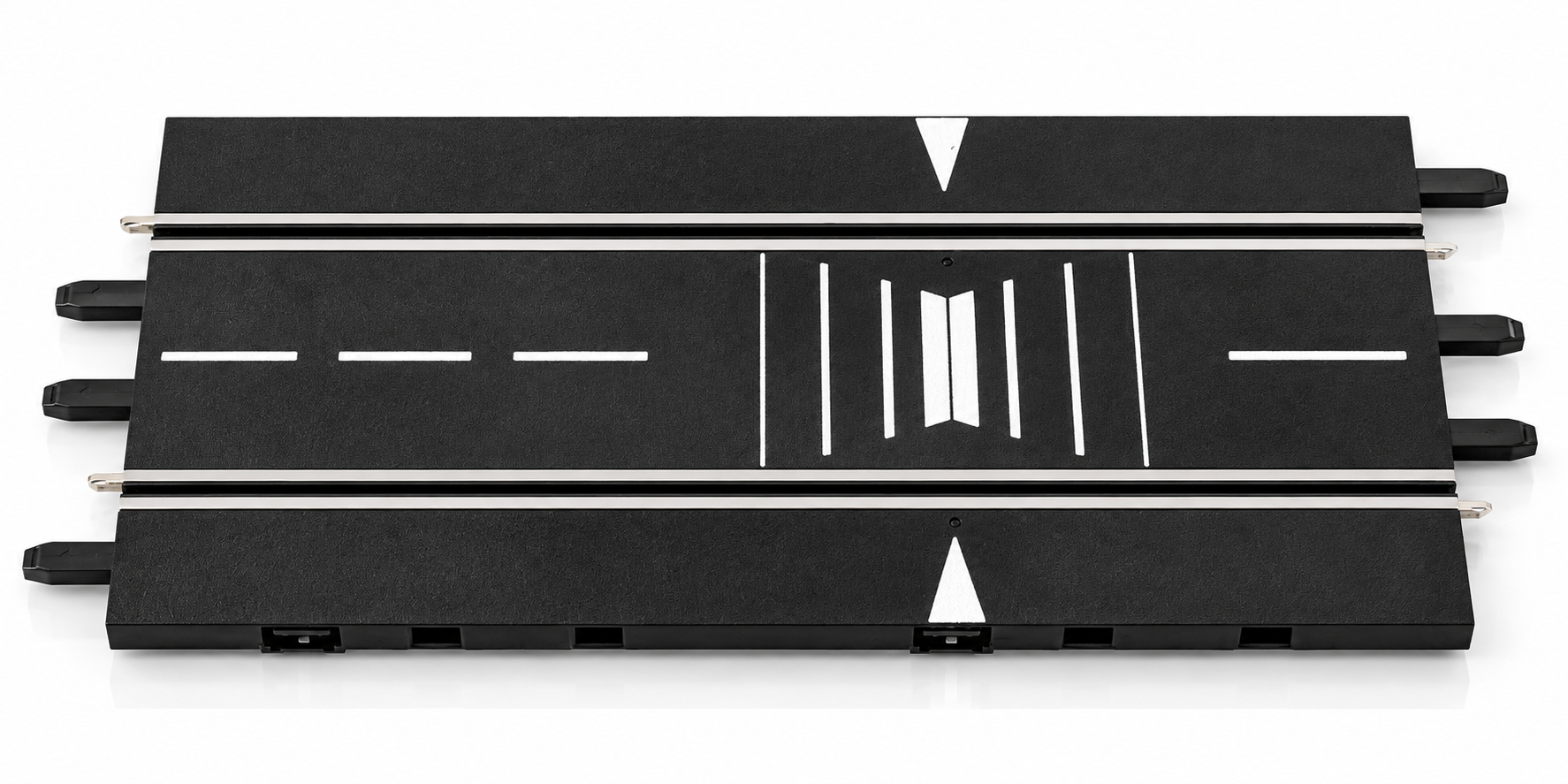
What can the Check Lane do?
- Sector and split-time measurement in conjunction with the Carrera Race App.
- Performance measurement via the Carrera Race App: elapsed time, average acceleration and average speed at the measurement points. You can compare measurements; the acceleration curve requires three Check Lanes.
How to install the Check Lane
Install Check Lane
- Install the Check Lane at the desired point on the track.
- Install two Check Lanes for three sectors.
- Install the Check Lanes before you define the sectors on the Control Unit.
Photo to follow: Check Lane installed in the track. An authentic image will be added.
Define sectors at the Control Unit
In order for the Check Lanes to measure sectors, the measuring points must be defined. Using the Carrera Race app, make sure that the Control Unit has firmware version 3.37 or higher installed.
Program the Check Lanes as sector-time points 1 and 2
- Turn off the Control Unit.
- Hold down the SPEED button and turn on the Control Unit. The first LED lights up permanently.
- Release the Speed button.
- Press SPEED repeatedly. LEDs 1–4 indicate the selected setting: LED 1 = timing off · LEDs 1+2 = timing on · LEDs 1+2+3 = sector time 1 · LEDs 1+2+3+4 = sector time 2.
- Push or drive a car across the Check Lane sensor. A tone confirms the selected setting.
- Do the same for each Check Lane. Then press START to leave the settings.
Start/finish line
The start/finish line forms a sector point when time recording is switched on. You do not need to set the measurement point on the Control Unit. Do not turn off the counting function of the Control Unit.
Photo to follow: LED 1+2+3 = sector time 1. An authentic image will be added.
Interaction with other Carrera components
- Control Unit: configure the measurement points at the CU.
- Carrera Race App: shows the intermediate times and checks the CU firmware.
- AppConnect: establishes the Bluetooth connection for the app.
Using it with Track Engine
This section explains what the hardware enables in Track Engine and which tasks remain on Carrera hardware.
Use Check Lane with Track Engine
Track Engine detects Check Lanes during the track test on your physical track, not from the layout alone.
Let Track Engine detect the Check Lanes
- Program the Check Lanes on the Control Unit as described above.
- In Race Control, choose ‘Connect Control Unit’ and wait until ‘CU ready’ appears.
- Start the track test and follow the marked position and arrow direction. Track Engine recognizes the Check Lane there.
- With two Check Lanes, CL1 must be detected before CL2 in the direction of travel.
Screenshot to follow: Track test: CL1 and CL2 detected. An authentic image will be added.
- Detected Check Lanes provide sector times in Race Control.
- DRS is a static stretch capability and requires one Control Unit and two Check Lanes.
- The programming of the Check Lanes remains at the Control Unit.
- Whether and how Track Engine uses the performance measurement of the Check Lane is not described in the Help documentation.
Unsure which Check Lane CL1 or CL2 is?
Reprogram the sensor in question. Track Engine then checks the detected sequence in the guided track test.
Common problems
The Check Lane does not count.
- Cause:
- The measurement point was not defined at the Control Unit or the time recording is off.
- Solution:
- Repeat the setup: switch on the CU while holding SPEED, then select timing on (LEDs 1+2) or sector time 1 or 2 (LEDs 1+2+3 or 1+2+3+4). Drive a car over the sensor until you hear the confirmation tone.
Programming cannot be completed.
- Cause:
- The Control Unit firmware is older than 3.37 or the Check Lanes were not yet installed when setup.
- Solution:
- Check the firmware version in the Carrera Race App. Install the Check Lanes in the track before programming them at the Control Unit.
Less than three sectors appear.
- Cause:
- Two Check Lanes are required for three sectors.
- Solution:
- Install two Check Lanes and define them as sector time 1 and 2.
Track Engine does not detect the Check Lanes or in the wrong order.
- Cause:
- The Check Lanes are not correctly programmed at the CU, the track test used a different physical layout, or CL1 and CL2 were detected in reverse order.
- Solution:
- Reprogram the affected sensor and repeat the track test. With two Check Lanes, CL1 must be detected before CL2 in the direction of travel.
No sector times in Track Engine.
- Cause:
- The CU is in power-saving mode or not connected, or the required Check Lanes were not detected.
- Solution:
- Reactivate the CU (2–3 seconds off and on), wait for “CU ready” and check in the track test whether the Check Lanes are detected.
Frequently asked questions
How many Check Lanes do I need?
You need two Check Lanes to measure three sectors: when timing is enabled, the start/finish line forms the third measurement point.
What firmware does the Control Unit need?
For sector programming, Carrera calls firmware version 3.37 or higher. It can be checked via the Carrera Race App.
Where can I install the Check Lane?
At any point in the track layout.
Do I need Check Lanes for Track Engine?
Yes for sector times and DRS (Control Unit + 2 Check Lanes). You do not need them for a basic race with lap times only.
Does Check Lane work with Evolution?
No. Check Lane is part of Carrera DIGITAL 124/132. Evolution is a separate analog system.
Related articles
Continue with Track Engine
Track Engine connects Carrera DIGITAL 132/124 to live timing, Race Control, strategy and analysis.
Sources
Carrera hardware details are based on Carrera's German instruction manuals:
Track Engine is an independent third-party product and is not affiliated with, authorized, sponsored or endorsed by Carrera.
Carrera and the product names mentioned are trademarks or product names of their respective owners. They are used here only to describe the products.
Was this article helpful?