CARRERA DIGITAL HARDWARE
Carrera Control Unit: functions, settings and Track Engine
The Carrera Control Unit controls your DIGITAL track: connections, programming vehicles, setting speed, brake and tank, starting sequence – and so Track Engine uses it.
Carrera DIGITAL 124/132 Control Unit (20030352) · ~14 min read · Updated: 13 October 2026
The Control Unit is the centre of every Carrera DIGITAL 124/132 track. It connects the power supply, hand controllers and accessories, stores each car's controller assignment, and controls refuelling, the Pace Car and race starts.
This article explains the CU step by step, following Carrera's manual, and shows how Track Engine uses its signals.
Compatibility
- Carrera DIGITAL 132
- Yes – the Carrera manual applies together to DIGITAL 124/132.
- Carrera DIGITAL 124
- Yes – the Carrera manual applies together to DIGITAL 124/132.
- Carrera Evolution
- No. Carrera Evolution is a separate analog system. Carrera explicitly warns against using DIGITAL 124/132 components on an Evolution track. Track Engine currently supports only track planning for Evolution.
What is the Control Unit?
The Control Unit (CU) is the central unit that controls the entire race on a Carrera DIGITAL 124/132 track. Using buttons on the CU, you program vehicles and set speed, braking behavior and fuel content. It is also the connection unit for power supply, hand controller, hand controller extension box, wireless tower, PC unit and Lap Counter.
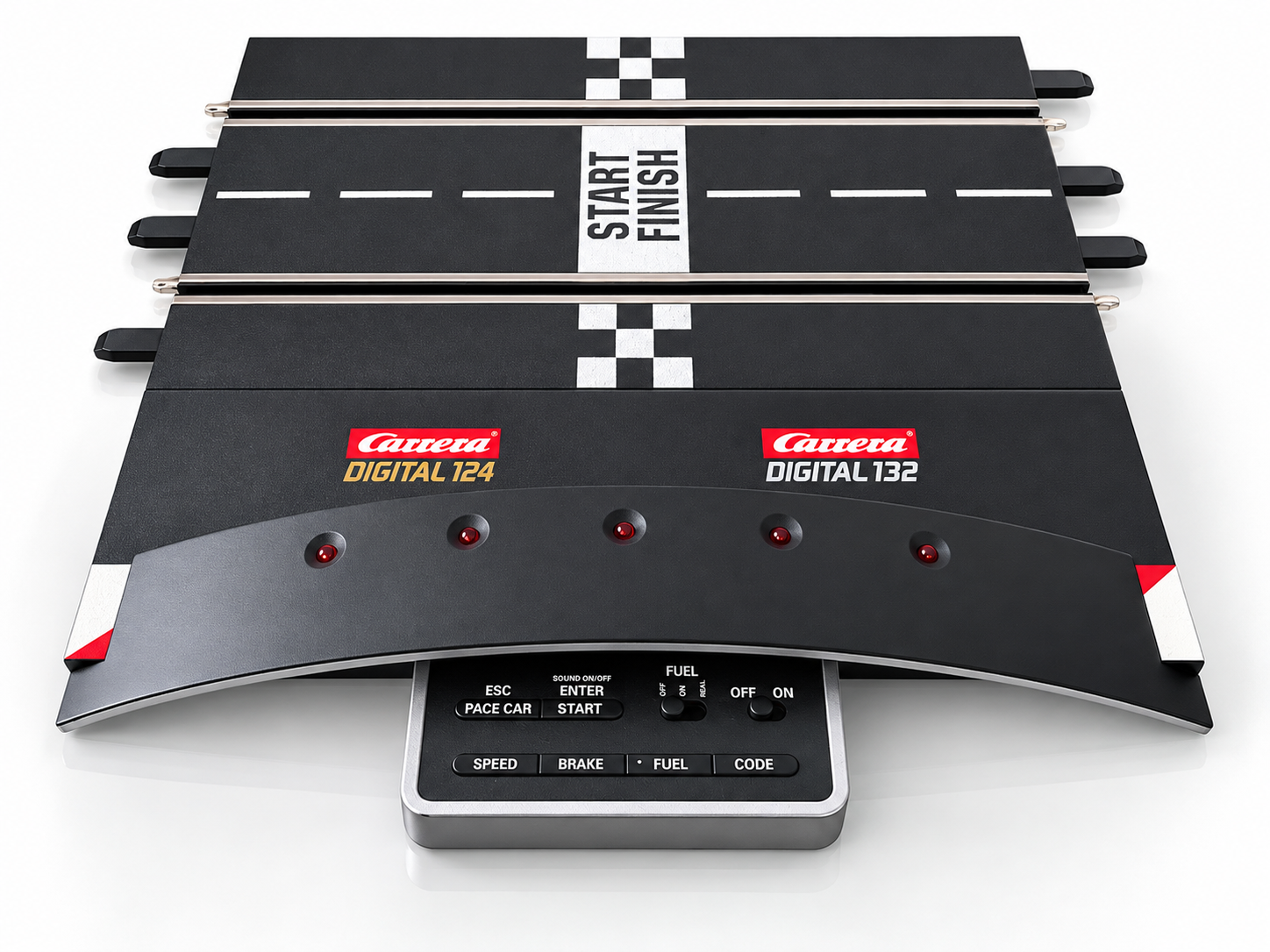
What can the Control Unit do?
- Programming (coding) vehicles and assigning hand controllers
- Adjust maximum vehicle speed and braking behaviour
- Activate the tank function on and off and adjust the tank contents
- Control driving behavior with the tank function switched on in REAL mode
- individual refueling – in conjunction with Pit Lane (20030356) and Driver Display (20030353)
- Managing Pace Car and Autonomous Car
- Turn lap counting on and off in Pit Lane
- lap counting and position display with the Position Tower (20030357)
- Control the Startlight (20030354) and initiate the race start with traffic light phase
- CU sound on/off, key lock, reset function and power saving mode
Connections and controls
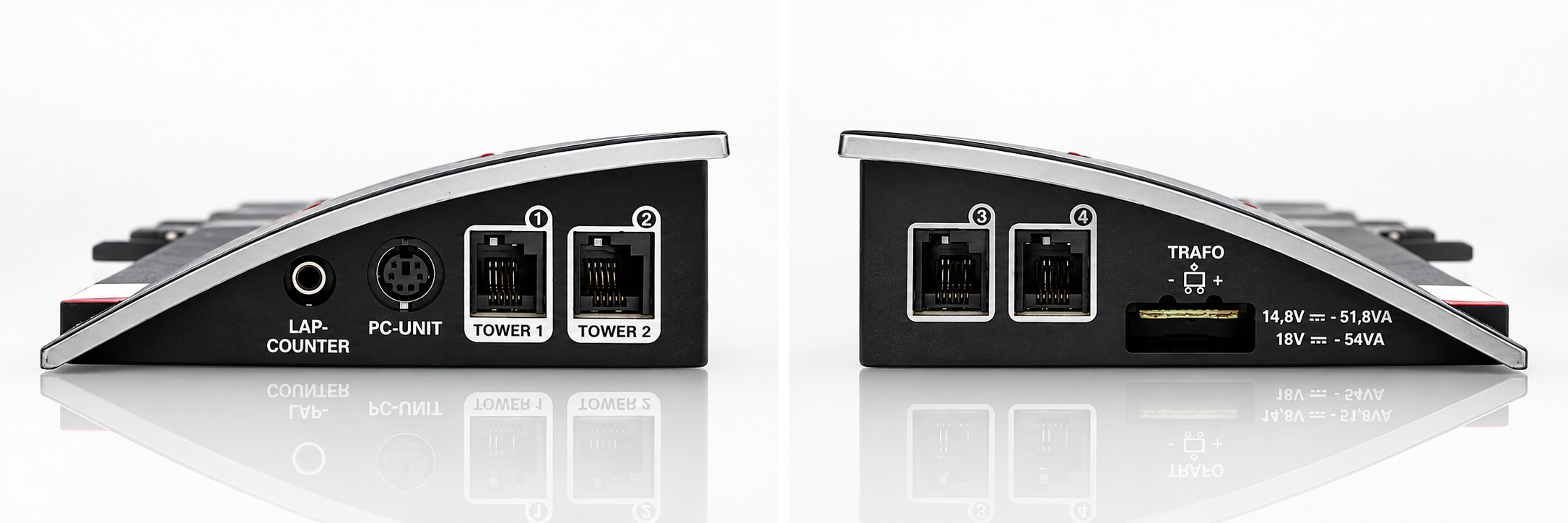
The connections are numbered from left to right:
- Connection 1
- Lap Counter 20030342 (older accessories)
- Connection 2
- PC-Unit, Lap Counter 20030355 or AppConnect 20030369. The manual lists these as alternatives for the same port.
- Controller socket 1
- Hand controller, hand controller extension box 20030348 or WIRELESS+ receiver
- Controller socket 2
- WIRELESS-Tower 20010108 (not to be used solely with a WIRELESS+ receiver)
- Controller sockets 3 and 4
- Wired hand controllers (vehicle addresses 5 and 6)
- Power supply
- Connection for the DIGITAL-124/132 power supply
With manual controller expansion box, the following applies: Box=addresses 1, 3 and 4, connection socket 2=address 2, connection socket 3=address 5, connection socket 4=address 6. Wireless and hand controller extension box cannot be combined.
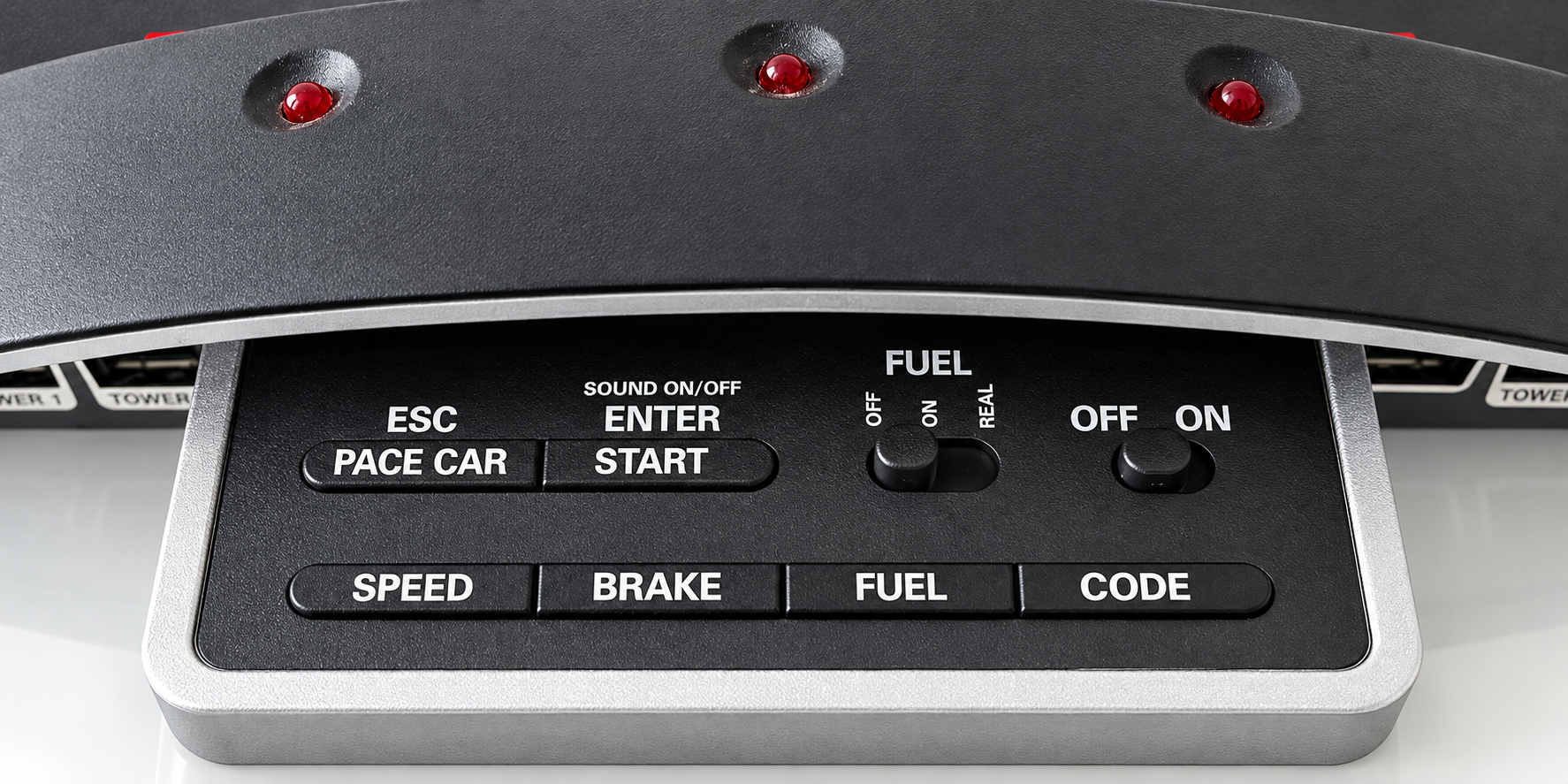
The eight controls of the CU:
- ON/OFF
- On/off switch
- Slide switch tank function
- OFF, ON or REAL
- START/ENTER
- Race start and confirmation during programming
- ESC/Pace Car
- Pace Car start/stop and cancel programming
- SPEED
- Setting basic speed
- BRAKE
- Adjusting braking behaviour
- FUEL
- Setting tank content
- CODE
- Programming vehicles
Some CU buttons serve more than one purpose. Certain functions use combinations such as holding a button while switching the CU on. Press ESC/PACE CAR to cancel programming.
How to Connect the Control Unit
Connect Control Unit
- Build the track on a level surface. Carpet is unsuitable because it can accumulate static charge and lint and is easily flammable.
- Plug the track sections together with the connecting clips until the clips latch audibly.
- Plug the plug of the original Carrera DIGITAL-124/132 power supply into the CU power supply port.
- Connect your hand controllers to the connection sockets 3 and 4 (or to socket 1 with hand controller extension box or WIRELESS+ receiver).
- Connect other accessories that the CU needs (e.g. Pit Lane, Driver Display, Position Tower, Startlight via the Adapter Unit).
Original power supply only
The track works perfectly only with the matching original power supply. Do not use an adjustable power supply and do not connect anything foreign. Run the track with only one power supply.
Keep DIGITAL and Evolution separate
Carrera Evolution (analog) and Carrera DIGITAL 124/132 are separate systems. Do not use an Evolution connection track section together with DIGITAL components (switches, Lap Counters or Pit Lane) in the same track. This can damage the DIGITAL components and may void the warranty.
First entry into service
Switch on the Control Unit and start
- Turn on the CU with ON/OFF.
- After about one second, the middle LED lights up permanently and a short signal sounds. The track is ready.
- Place the vehicles on the power track section in the direction of travel.
- Program new vehicles as described in the next section and get started.
In this mode the track is ready without a start-light countdown, so you can drive immediately.
Race start with starting sequence
- Turn on the CU and wait for the permanently glowing middle LED.
- Press the START button until all LEDs light up.
- Place the vehicles on the power track section.
- Press START again. The LEDs light in sequence and the CU sounds its start signal.
- Once the start-light sequence finishes (the LEDs light in sequence), the race is released.
False start
If you move the hand controller during the start traffic light phase, this counts as a false start. The vehicle in question starts up briefly, the LED of the controller flashes and the race is not released. It needs to be restarted.
Registering and programming vehicles
In order for the CU to know which hand controller controls which car, each vehicle is coded once. Only ever put the vehicle on the track that you are coding.
Assign a car to a hand controller
- Put the vehicle on the track and turn on the CU.
- Press CODE once. The first LED lights up.
- Press once the lane-change button of the hand controller that is to control the vehicle.
- In the case of vehicles with lighting, the lights and the LEDs 2–4 flash in succession.
- If the middle LED is permanently illuminated, the vehicle is assigned to the hand controller.
The Autonomous Car (colloquially often “Ghost Car”) drives alone on the track. It gets the address 7.
Programming an autonomous car
- Put the vehicle on the track, CU switched on. Press CODE twice – the first two LEDs light up.
- Press the hand controller lane-change button. The LEDs 3-5 are activated one after the other.
- Wait until the middle LED lights up again.
- Use the hand controller trigger to bring the car to the desired speed.
- Press the lane-change button again when the speed is reached. The Autonomous Car is coded and remains so until it is recoded.
The Pace Car (address 8) is only available together with the Pit Lane 20030356.
Program and start Pace Car
- Put the vehicle on the track, CU switched on. Press CODE three times – the first three LEDs light up.
- Press the hand controller lane-change button. The LEDs 2-5 are activated one after the other. Wait until the middle LED lights up again.
- Bring the vehicle to the desired speed with the controller trigger and press the lane-change button again. The Pace Car goes to Pit Stop Lane.
- To start, press ESC/Pace Car: The LEDs 2 and 3 light up and the Pace Car leaves the Pit Lane.
- If you press the button again, LED 2 goes out and the Pace Car returns to Pit Lane within the current lap.
The position of Autonomous Car (address 7) and Pace Car (address 8) can be displayed on the Position Tower – Details are given in the instructions for the Position Tower.
Photo to follow: Coding complete: centre LED illuminated. An authentic image will be added.
Adjust speed, brake and fuel content
Speed, brake and fuel are adjusted in the same way. Each has 10 levels, indicated by the five LEDs through blinking or steady light: one LED indicates a low setting, five LEDs a high one. Place the vehicles you want to configure on the track first.
Change a setting
- Put the vehicles on the track and turn on the CU.
- Press the appropriate button once: SPEED (basic speed), BRAKE (brake behavior, only hand-operated vehicles) or FUEL (fuel content).
- The LEDs show the last step used. Press the button until the desired level is reached.
- Confirm with ENTER/START.
- A short running light and the luminous middle LED show that the setting is complete.
Tank content
When the fuel function is enabled, you set the starting fuel level for all vehicles at once. It works together with Pit Lane.
Tank function and REAL mode
The sliding switch of the tank function has three modes:
- OFF
- The vehicles do not consume “petrol”.
- ON
- The vehicles consume “petrol”.
- REAL
- In REAL mode, top speed also depends on fuel level. This requires Pit Lane 20030356 or Pit Stop Lane 20030346 and Pit Stop Adapter Unit 20030361.
In REAL mode, a vehicle with a full tank is “heavier”: it drives slower and brakes worse. With an empty tank it is “lighter”, faster and brakes better. The current fuel content is displayed by the Driver Display.
Refuel with Pit Lane and Driver Display
- Drive in Pit Lane via the tank sensor. The bar display of the Driver Display begins to blink.
- Press the lane-change button of your hand controller to refuel.
- The yellow LEDs on the Driver Display show the number of refueling operations.
Tank contents at the start of the race
With Pit Lane and Driver Display, you can set the fuel content of individual vehicles for the laps until the first refueling stop: once press START/ENTER, the five CU LEDs light up, the bar display flashes, and with the lane-change button of the respective controller you change the filling level.
Vehicles with an empty tank are not included in the lap count with the Position Tower.
Key Lock, Sound, Reset and Power Saving Mode
- Key lock
- When the CU is switched off, hold down the CODE key, switch CU on, release the key. After that, the buttons for Speed, Brake and Fuel are locked. The same sequence cancels the lock again.
- Sound on/off
- With the CU off, hold START/ENTER while switching it on, then release the button. The switch-on confirmation tone always remains enabled.
- Reset
- With the CU switched off, hold ESC/PACE CAR, switch it on, then release the button. Speed, brake, fuel level, sound and lap counting return to factory settings (speed 10, brake 10, fuel level 7, sound on, Autonomous/Pace Car position display off). Vehicle assignments remain unchanged as long as the vehicles are not on the track.
- lap count in Pit Lane
- With the CU switched off, hold SPEED, switch the CU on, then release the button. Press SPEED to choose: one LED = no lap counting in Pit Lane; two LEDs = lap counting enabled. The setting takes effect when a car crosses the Pit Lane sensor. Press START/ENTER to leave the menu.
- Power-saving mode
- After 20 minutes without use, the CU turns off all displays of Position Tower, Driver Display and Startlight. To reactivate, turn the CU off and back on for about 2–3 seconds. All settings are maintained.
Interaction with other Carrera components
- AppConnect: Bluetooth connection for app and Track Engine – see AppConnect
- Pit Lane with Pit Stop Adapter Unit: refueling and lap counting in the Pit Lane – see Pit Lane and PSAU
- Check Lane: sector times, prerequisite for DRS in Track Engine – see Check Lane
- Driver Display, Position Tower, Startlight: Displays and starting lights, connected via the Adapter Unit
- Lap Counter: lap counting and time measurement on the display
Using it with Track Engine
This section explains what the hardware enables in Track Engine and which tasks remain on Carrera hardware.
Connect the Control Unit to Track Engine
Track Engine supports Race Control with real hardware for Carrera DIGITAL 124/132. You need a compatible Control Unit, AppConnect and a supported browser with Bluetooth access.
Connecting Control Unit to Race Control
- Turn on the CU and make sure AppConnect is connected.
- In Track Engine, open Race Control and then ‘CU Settings’.
- Select ‘Connect Control Unit’, then choose your CU in the browser's device picker.
- Wait for the message “CU ready”.
- Perform the offered track test so that Track Engine detects the existing Check Lanes and a PSAU.
Screenshot to follow: Race Control: status “CU ready”. An authentic image will be added.
What Track Engine Makes of It
- Live measurement in the race: laps, lap times and positions; with detected Check Lanes additionally sector times.
- Race release: The CU decides on the actual race release. Track Engine shows the countdown with five red lights.
- Fuel: Race Control reads the fuel mode from the connected CU.
- Track capabilities: Track Engine derives a digital twin from your layout and shows which functions the existing hardware allows.
What features are available depends on the hardware:
- Fuel consumption
- Control Unit
- Fueling and Pit Rules
- Control Unit + Pit Stop Adapter Unit (PSAU)
- DRS
- Control Unit + 2 Check Lanes
- Pace Car
- Control Unit + second Pit Lane (pace-car lane)
- Weather rules
- not available without CU · CU without PSAU partially · CU with PSAU completely
What you continue to do at CU – and what Track Engine does
- At the CU remains: coding vehicles, tank function (OFF/ON/REAL), race start, Pace Car button, reset. Track Engine does not program a real car.
- In Track Engine, prepare drivers, assign vehicles and controller numbers, choose the race mode and start setup, and configure vehicle speed, braking, fuel and tyres.
- The controller number in Track Engine must match the controller used to code the car at the CU.
Without a CU, hardware-dependent Race Control functions are unavailable. Track planning and room planning do not require hardware.
Read more in Track Engine
The steps in Race Control, the assignment of drivers, vehicles and controllers and the additional functions explain the Track Engine articles under “Further articles”.
Common problems
The car is not driving or jerking.
- Cause:
- Power connection, hand controllers, track connections, dirty track grooves, pickup braids without contact, car not coded or put on the wrong way around.
- Solution:
- Check the power supply, controller and track section connections. Clean the track and slots with a dry cloth. Check the pickup braids and vehicle coding, and place the car in the direction of travel. If it still does not move, change the direction switch underneath the car.
The track briefly loses power.
- Cause:
- In the case of an electrical short-circuit, the power supply automatically switches off for about 5 seconds. Acoustic and optical signals indicate it.
- Solution:
- Remove metal parts and foreign bodies from the track and check the track section connections.
Displays of Position Tower, Driver Display or Startlight are off.
- Cause:
- The CU went into power-saving mode after 20 minutes of non-use.
- Solution:
- Turn the CU off and back on for about 2–3 seconds. The settings are maintained.
A vehicle cannot be programmed.
- Cause:
- More than one vehicle is on the track, one step has been skipped or the key lock is active.
- Solution:
- Place only the car being coded on the track and follow the steps in order. Press ESC/PACE CAR to cancel and start again. Check whether the button lock is active (hold CODE while switching on).
Speed, brake or fuel content cannot be changed.
- Cause:
- The button lock is active or the vehicle is not on the track.
- Solution:
- Disable the button lock and place the vehicles on the track before changing their settings.
The refuelling does not work.
- Cause:
- Tank function is OFF, the Pit Lane or the Driver Display is missing, or the vehicle was not driven via the tank sensor.
- Solution:
- Set the slide switch to ON or REAL and drive via the tank sensor in Pit Lane. Press the lane-change button when refuelling. REAL is only available with Pit Lane and Pit Stop Adapter Unit.
Track Engine does not display the CU or does not remain connected.
- Cause:
- CU turned off or in power save mode, AppConnect is missing or the browser has no Bluetooth access.
- Solution:
- Turn on or reactivate the CU, check AppConnect and reconnect in Race Control via “Connect Control Unit”. Wait for “CU ready.”
Frequently asked questions
Do I need the Control Unit?
For a Carrera DIGITAL 124/132 track yes: it controls vehicles, accessories and the race start. Also for Race Control with hardware in Track Engine you need a compatible Control Unit.
Do I need to program every car?
Yes, once. Each vehicle is assigned with CODE and the lane-change button to the desired hand controller. The assignment remains stored until you recode the vehicle.
How do I reset the Control Unit?
With the CU switched off, hold ESC/PACE CAR, switch it on, then release the button. Speed, brake, fuel level, sound and lap counting return to their factory settings.
What does REAL mean for the fuel switch?
In REAL mode, the top speed depends on the tank contents: full tank means slower and weaker brake, empty tank faster and better brake. REAL only works with Pit Lane and Pit Stop Adapter Unit.
How many vehicles can I drive?
hand controller vehicles use addresses 1 to 6. In addition, there is the Autonomous Car (address 7) and the Pace Car (address 8). The Lap Counter counts up to 8 vehicles, of which up to 6 are hand-held.
Can I use the Control Unit with Evolution?
No. Evolution is a separate analog system. Carrera expressly prohibits using DIGITAL 124/132 components on an Evolution track.
How do I connect the Control Unit with Track Engine?
You need a compatible CU, AppConnect and a browser with Bluetooth access. In Race Control, open ‘CU Settings’, select ‘Connect Control Unit’ and choose your CU in the device picker. Wait for ‘CU ready’.
Related articles
Continue with Track Engine
Track Engine connects Carrera DIGITAL 132/124 to live timing, Race Control, strategy and analysis.
Sources
Carrera hardware details are based on Carrera's German instruction manuals:
- Carrera DIGITAL 124/132 Control Unit 20030352 – Assembly and operating instructions
- Carrera DIGITAL 124/132 Check Lane 20030371 – Assembly and operating instructions
- Carrera DIGITAL 124/132 Pit Lane 20030356 – Assembly and operating instructions
- Carrera DIGITAL 124/132 Position Tower 20030357 – Assembly and operating instructions
Track Engine is an independent third-party product and is not affiliated with, authorized, sponsored or endorsed by Carrera.
Carrera and the product names mentioned are trademarks or product names of their respective owners. They are used here only to describe the products.
Was this article helpful?