CARRERA DIGITAL HARDWARE
Carrera AppConnect: connecting the Control Unit to Track Engine
Carrera AppConnect connects your Control Unit to apps via Bluetooth. What it can do, where it connects, how you connect it to Track Engine, and what helps with connection issues.
Carrera AppConnect (20030369) · ~7 min read · Updated: 13 October 2026
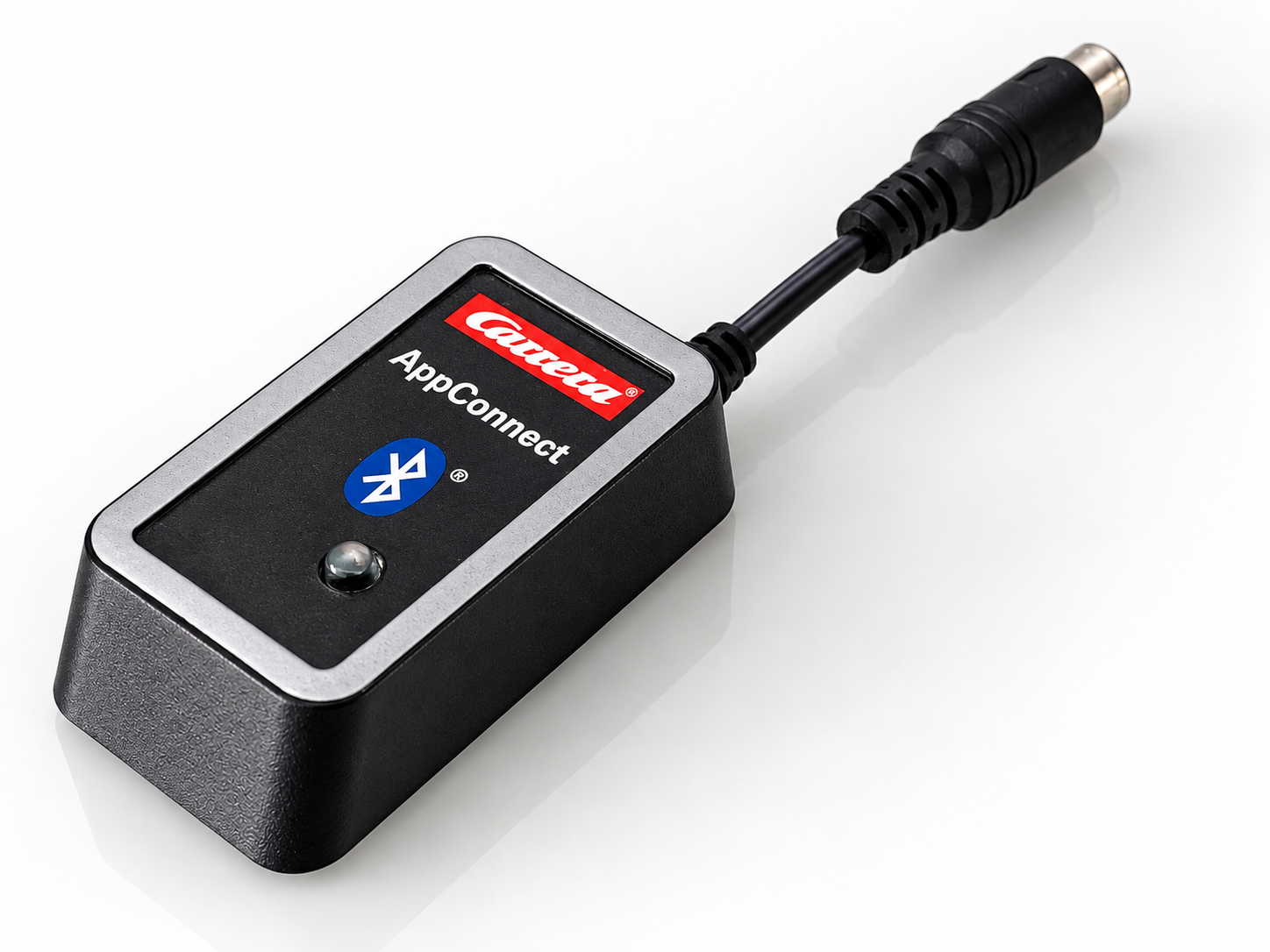
AppConnect is the Bluetooth accessory that links a Carrera Control Unit to an app.
This article explains where AppConnect connects, how to establish the connection and how Track Engine uses it.
Compatibility
- Carrera DIGITAL 132
- Yes – the Carrera manual applies together to DIGITAL 124/132.
- Carrera DIGITAL 124
- Yes – the Carrera manual applies together to DIGITAL 124/132.
- Carrera Evolution
- No. Carrera Evolution is a separate analog system. Carrera explicitly warns against using DIGITAL 124/132 components on an Evolution track. Track Engine currently supports only track planning for Evolution.
What is AppConnect?
Carrera AppConnect (20030369) is a Bluetooth® accessory for Carrera DIGITAL 124/132. Carrera's leaflet describes three steps: download the Carrera Race App, connect AppConnect and start the app. AppConnect operates in the 2.4 GHz band (2400–2483.5 MHz) with a transmission power of no more than 10 mW.
Carrera points out to check device and software compatibility in advance on carrera-toys.com.
What does AppConnect do?
- It establishes the connection between Control Unit and a suitable app via Bluetooth.
- Carrera uses it for the Carrera Race app; Track Engine uses it for the hardware operation of Race Control.
- Carrera does not describe a vehicle-coding step for AppConnect.
How to connect AppConnect
Connect AppConnect
- Plug AppConnect into port 2 of the Control Unit. According to the CU's guidance, this is the connection for "PC-Unit or Lap Counter 20030355 or App Connect 20030369".
- Turn on the Control Unit and wait until the middle LED is permanently lit.
- Launch the app you want to connect to (Carrera Race App or Track Engine).
One connection for several devices
The CU manual lists PC-Unit, Lap Counter and AppConnect as alternatives for port 2. Carrera's instructions do not confirm simultaneous use. Check this before planning to use a Lap Counter and AppConnect together.
Photo to follow: AppConnect on the Control Unit. An authentic image will be added.
First connection
Establish the first connection
- Make sure the Control Unit and track are set up and switched on.
- Plug in AppConnect and launch the app you want to use.
- Select your Control Unit in the app or in the Bluetooth device selection of your browser.
- Wait until the app reports an existing connection.
Interaction with other Carrera components
- Control Unit: AppConnect only works with the DIGITAL-124/132-CU.
- Check Lane: sector times are visible with the Carrera Race App or Track Engine; The firmware of the CU can be checked via the Race App.
Using it with Track Engine
This section explains what the hardware enables in Track Engine and which tasks remain on Carrera hardware.
Use AppConnect with Track Engine
Track Engine supports Race Control with real hardware for Carrera DIGITAL 124/132. The prerequisite is a compatible Control Unit with AppConnect and a supported browser with Bluetooth access.
Connect AppConnect to Track Engine
- Connect AppConnect to the powered-on Control Unit.
- Open Race Control in Track Engine, then open ‘CU Settings’.
- Select “Connect Control Unit” and your CU in the browser’s normal device selection.
- Wait for “CU ready” and then run the track test.
- Track Engine connects to the Control Unit over Bluetooth. It detects additional components, including Check Lanes and a PSAU, during the track test.
- The hardware connection of Race Control is enabled: live measurement, positions, sectors and the hardware-dependent additional functions.
- Without AppConnect, the hardware connection of Race Control is not available. Planning and administration continue to work.
Screenshot to follow: Device selection when connecting. An authentic image will be added.
Common problems
Track Engine does not find the Control Unit.
- Cause:
- The CU is switched off or in power-saving mode, AppConnect is not seated correctly, or the browser cannot access Bluetooth.
- Solution:
- Switch on the CU; after a long idle period, switch it off for 2–3 seconds and back on. Check that AppConnect is seated properly, use a browser with Bluetooth access and select ‘Connect Control Unit’ again.
The connection breaks off.
- Cause:
- The Control Unit has switched to power-saving mode after 20 minutes of non-use.
- Solution:
- Reactivate the CU and reconnect in Track Engine. Wait for “CU ready.”
Frequently asked questions
Do I need AppConnect for Track Engine?
Yes, for hardware-connected Race Control. You need a compatible Control Unit, AppConnect and a browser with Bluetooth access.
Where is AppConnect connected?
Connection 2 of the Control Unit. There, the CU manual mentions PC-Unit, Lap Counter 20030355 or AppConnect 20030369.
Does AppConnect need to be programmed?
Carrera's leaflet lists three steps: download the Carrera Race App, connect AppConnect, then launch the app. It does not describe separate programming for AppConnect.
Does AppConnect work with Evolution?
No. Evolution is a separate analog system. AppConnect belongs to Carrera DIGITAL 124/132.
Related articles
Continue with Track Engine
Track Engine connects Carrera DIGITAL 132/124 to live timing, Race Control, strategy and analysis.
Sources
Carrera hardware details are based on Carrera's German instruction manuals:
Track Engine is an independent third-party product and is not affiliated with, authorized, sponsored or endorsed by Carrera.
Carrera and the product names mentioned are trademarks or product names of their respective owners. They are used here only to describe the products.
Was this article helpful?