
Account
Manage devices
Make room for a new browser without deleting saved tracks.
Make room for a new device
- In “My account”, open “Manage devices”.
- Find an entry you no longer use. “This device” identifies the current browser.
- Choose “Remove” for the old entry and read the confirmation dialog.
- Confirm removal, then sign in using the browser you want.
You are done when the new browser is registered and you can use Track Engine.
I cannot use another device
Start with the device list. An old entry may still occupy a space even when you are not using that browser.
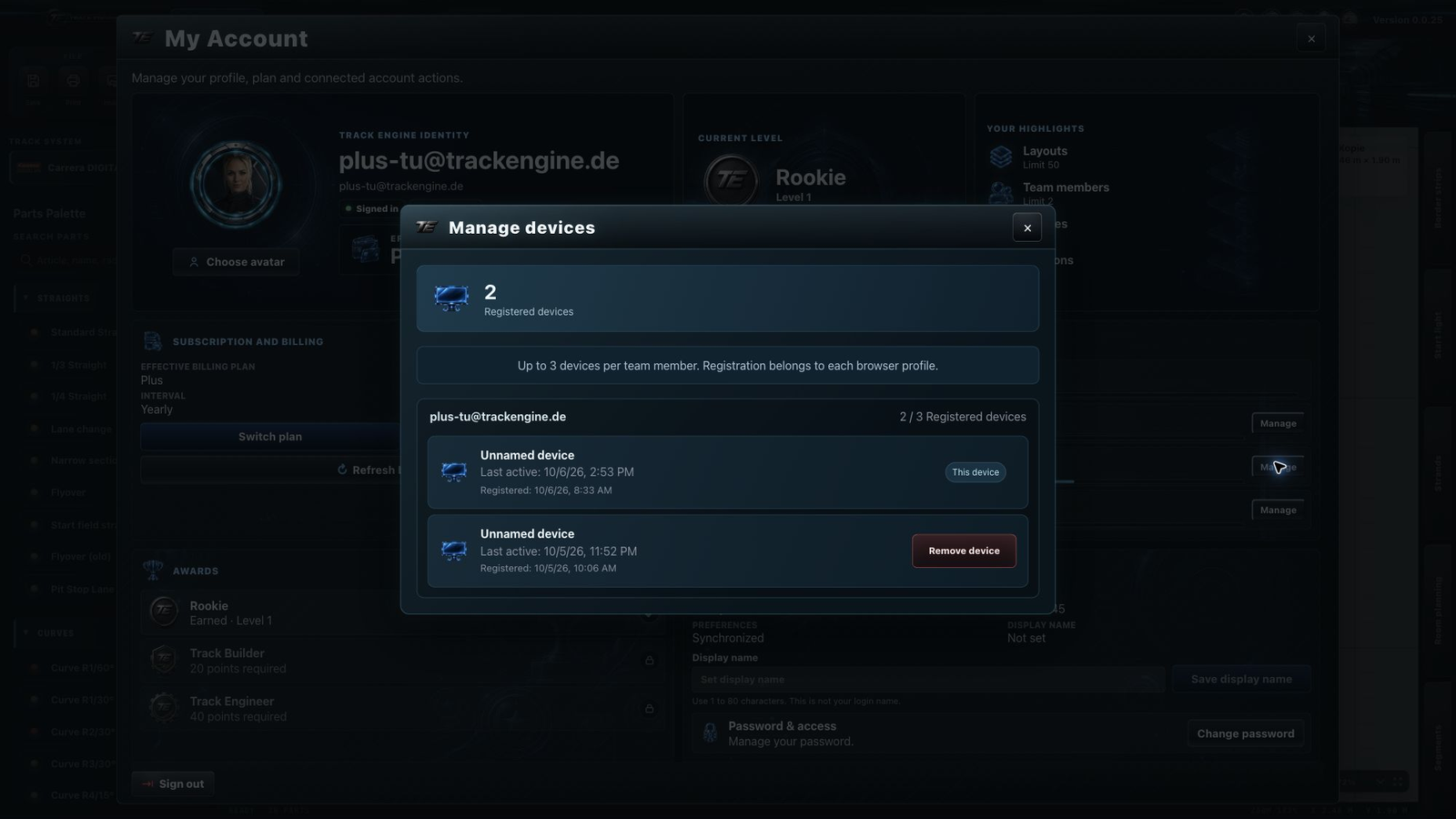
What counts as a device here
A device is the browser-and-device combination you use for Track Engine, such as the browser on your laptop, desktop or tablet. Where possible, use the same browser on the same device.
A different browser on the same computer can count as another entry. Device spaces apply per person: Free allows 2; Basic, Plus and Pro each allow 3. See the full overview under Plan and subscription.
Devices and sessions differ
A registered device tells Track Engine that you may use this browser on this device. A session is a currently ongoing use of Track Engine. An unused device space therefore does not automatically provide a free session. See Manage sessions.
Which entry should I remove?
Use the displayed last-activity and registration information. Remove an entry you no longer need, rather than accidentally removing the browser you are working in. If removal is not offered for an entry, use another old entry.
Removal does not delete saved layouts or cancel a subscription. Active sessions for that entry end; save any open work beforehand.
Multiple browser profiles
A browser profile keeps items such as sign-ins and settings separate. Two profiles in the same browser can therefore occupy two device spaces. Signing out does not replace removing an entry you no longer need.
Related articles
Was this page helpful?