
Track Planner
Border Strips
How to configure border strips through their Side Panel and apply them to your track.
Selecting and configuring border strips
- Select the border strip you want.
- Open its Side Panel.
- Configure it and apply it to your track.
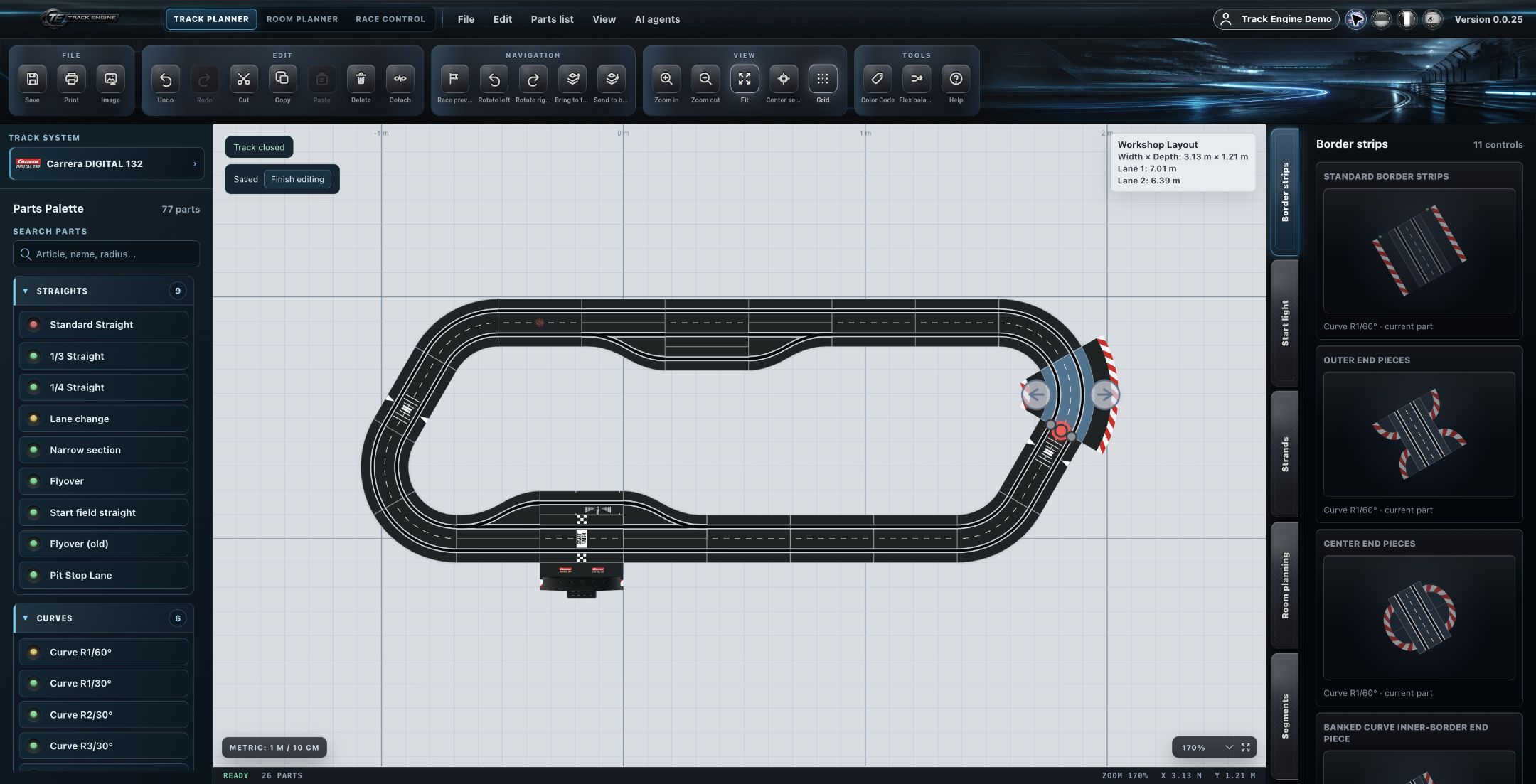
Every track part has its own border strips
Each track part fundamentally has its own individual border-strip configuration in its Side Panel — border strips aren't automatically carried over from one part to the next along the track.
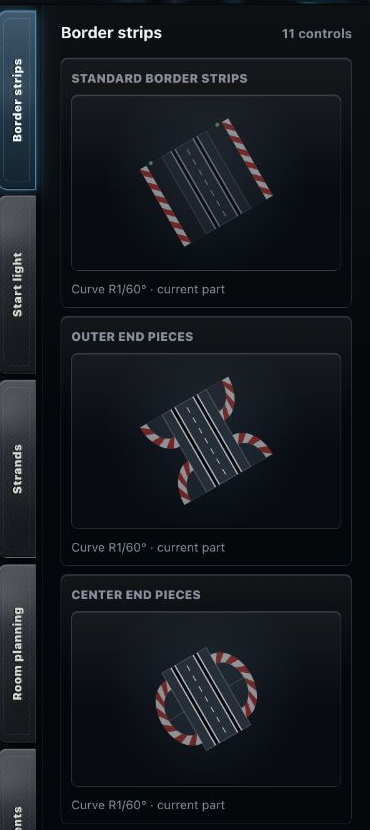
Special border strips and special parts
Beyond each part's individual border strips, there are also special border strips and special parts. These attach to the side of track parts and are conceptually treated like border strips.
Border strips in a layout
Border strips on a track, in a layout context.
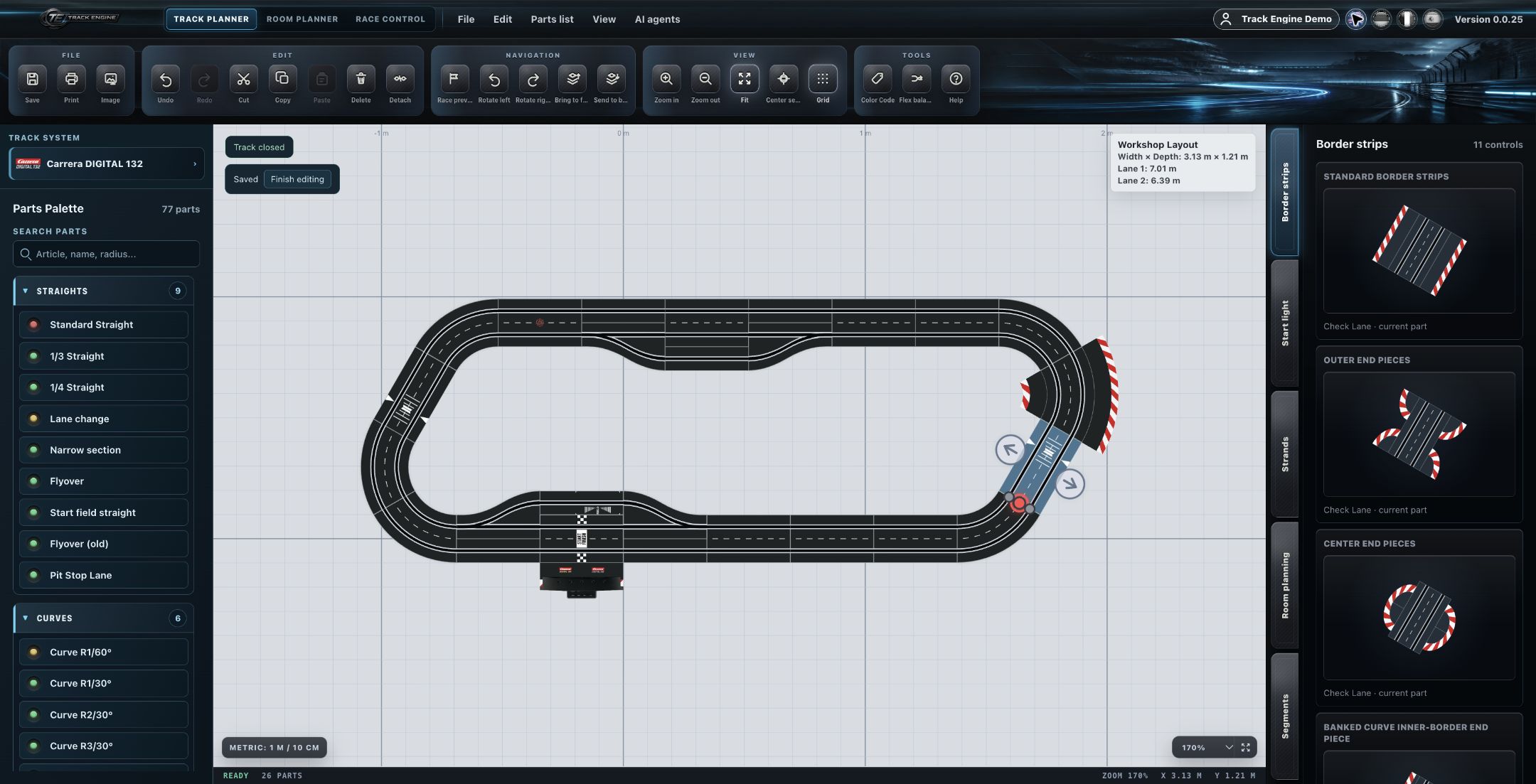
A purely visual track accessory
Border strips are a visual track accessory configured through the Side Panel — they don't change the track's physical geometry or connectivity. Each part carries its own border-strip configuration; there's no automatic propagation along the whole track.
Documentation gap
The exact configuration options per border strip, and any restrictions on inner/outer curve combinations, aren't fully documented yet.
Related articles
Was this page helpful?