
Room Planner
Warning and Restricted Areas
How to insert obstacles, blocked areas and warning areas in the Room Planner, and how their state is later configured and displayed in Track Planner.
Inserting obstacles, blocked areas and warning areas
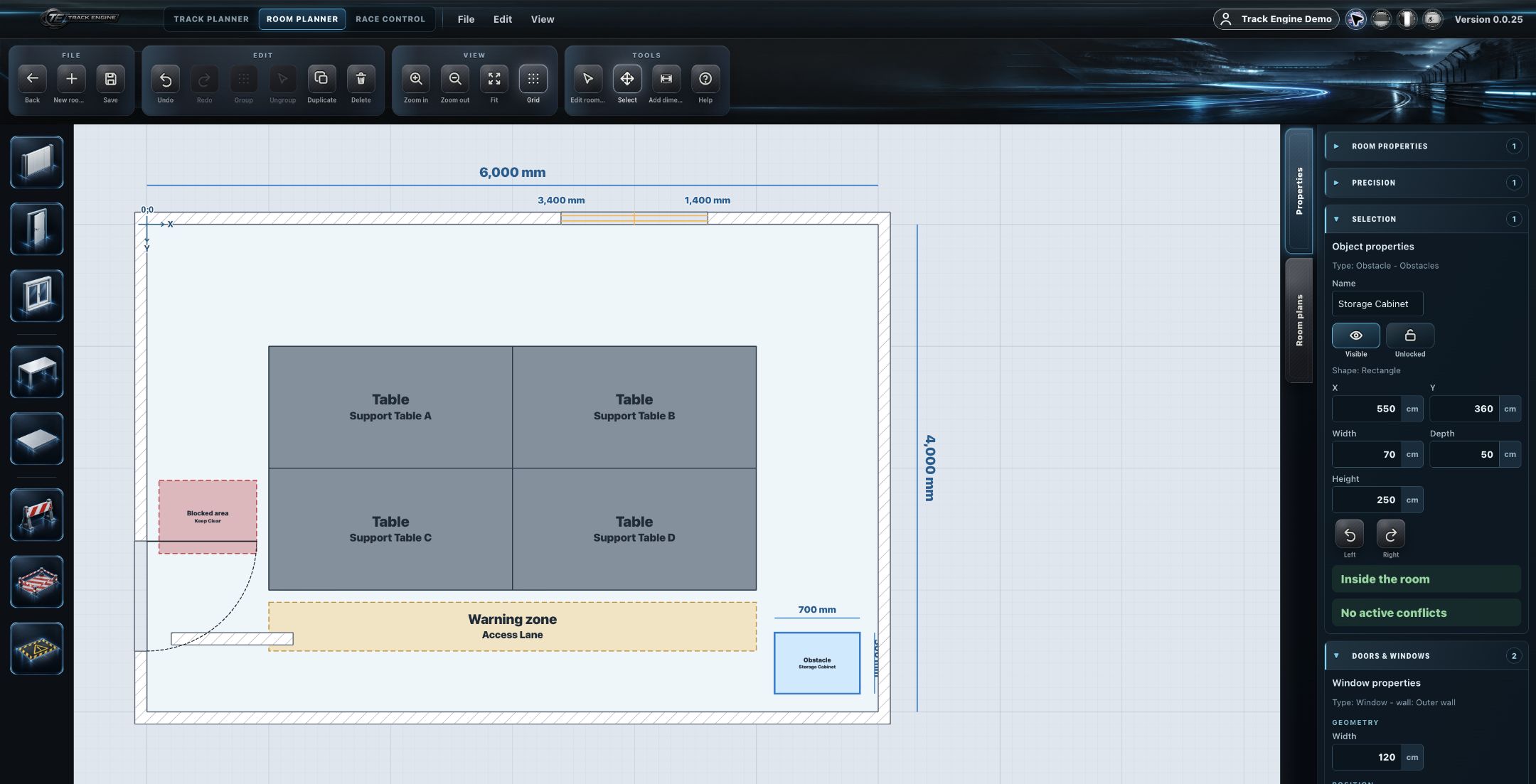
The Room Planner has three restriction/safety object types: Obstacle, Blocked Area, and Warning Area.
- Select the object you want in the left object toolbar.
- Place it in the room.
- Select the inserted object.
- Adjust its properties in the right-hand Properties panel.
Tip
Use these objects to mark areas that shouldn't be treated as normal usable space.
Obstacle
An obstacle marks a physical barrier in the room.
Obstacle
Insert here
In the room
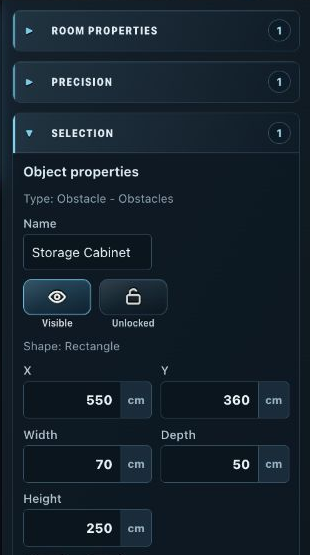
Properties
Adjust the available properties in the right-hand Properties panel.
Blocked Area
A blocked area marks a zone that shouldn't be treated as normal usable space.
Blocked Area
Insert here
In the room

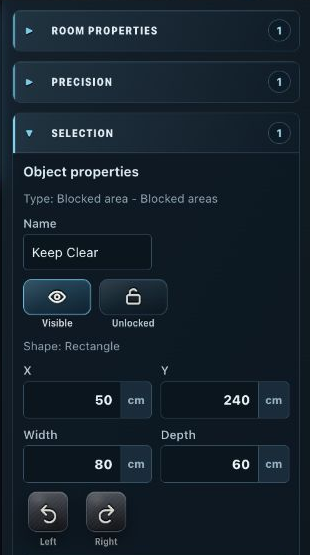
Properties
Adjust the available properties in the right-hand Properties panel.
Warning Area
A warning area marks a zone that needs special attention without being fully blocked.
Warning Area
Insert here
In the room
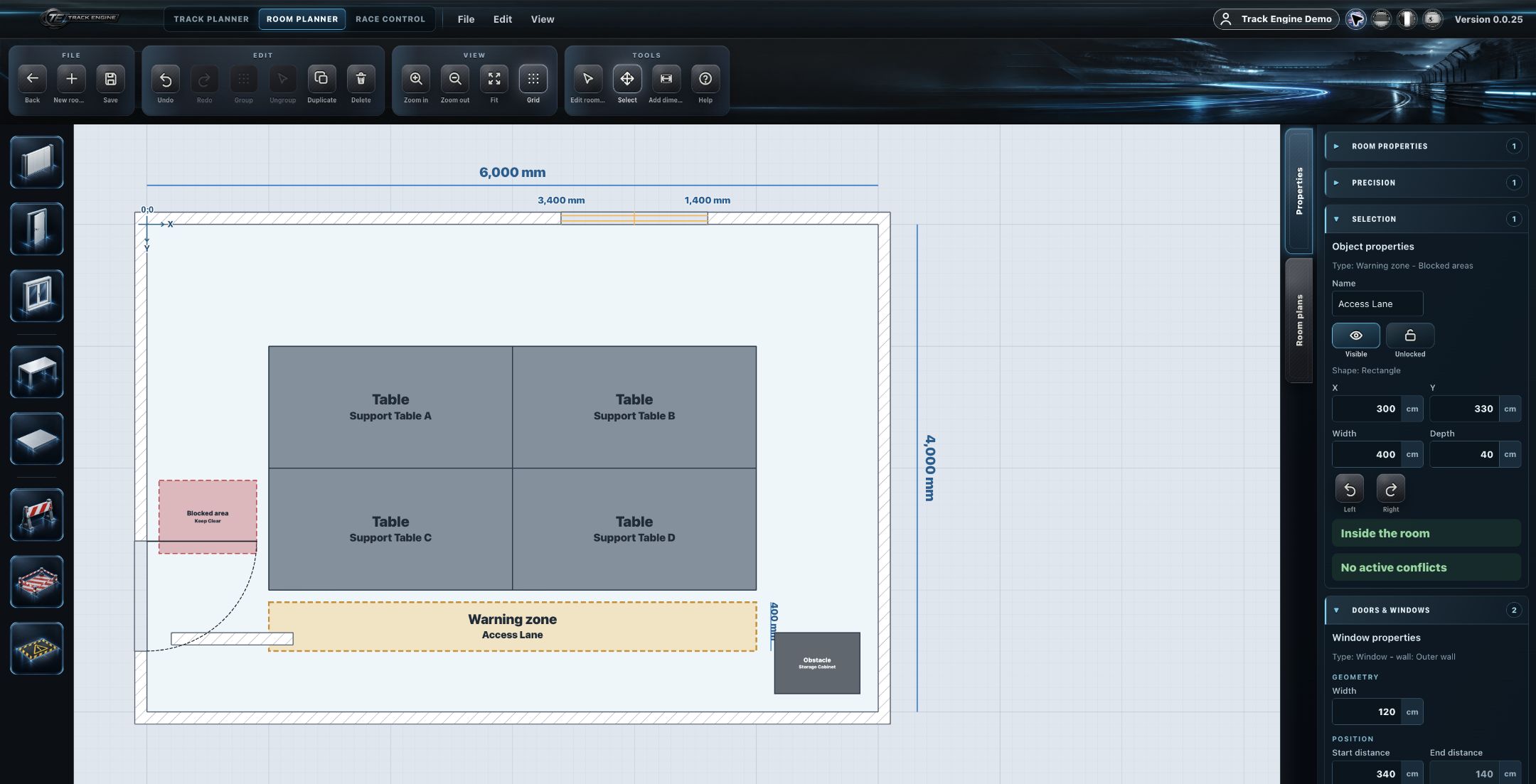
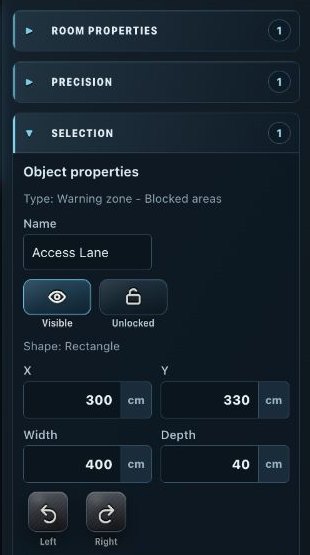
Properties
Adjust the available properties in the right-hand Properties panel.
Display in Track Planner: off or active visualization
The object type itself determines an area's severity in Track Planner — you don't reassign a warning area to "error" or a blocked area to "warning" after the fact:
- Warning Area — carries warning semantics. Active visualization in Track Planner: yellow.
- Blocked Area — carries error semantics. Active visualization in Track Planner: red.
- Off — suppresses the Track Planner visualization entirely, for either area type.
This visualization is purely visual — it doesn't block saving, exporting, editing, or any other action in Track Planner.
Display in Track Planner
The result of this configuration is then shown directly in the Track Planner layout — warning areas in yellow, blocked areas in red.
Image coming soon
Properties
Editable for Obstacle, Blocked Area, and Warning Area: shape, size, position, and label. There's no freely editable color field — color follows the object semantics above, not a user setting.
Object type, not free assignment, determines severity
Severity (warning vs. error) is tied to the object type, not freely assignable: a Warning Area always displays as a warning (yellow) in Track Planner, a Blocked Area always as an error (red). "Off" only turns the visualization off for either type — it doesn't change the severity.
Placement is constrained by room geometry
Where an obstacle, blocked area, or warning area can be placed is constrained by the room geometry.
Related articles
Was this page helpful?