
Room Planner
Walls, Doors and Windows
How to place interior walls, doors and windows in the Room Planner and edit their properties in the right-hand Properties panel.
Inserting interior walls, doors and windows
- Select the object you want in the left object toolbar.
- Place it on the desired wall or in the room.
- Select the inserted object.
- Adjust its properties in the right-hand Properties panel.
Tip
Select the object after placing it to fine-tune its exact properties in the right-hand panel.
Interior Wall
An interior wall subdivides the room in addition to its outer room boundaries.
Interior Wall
Insert here
In the room
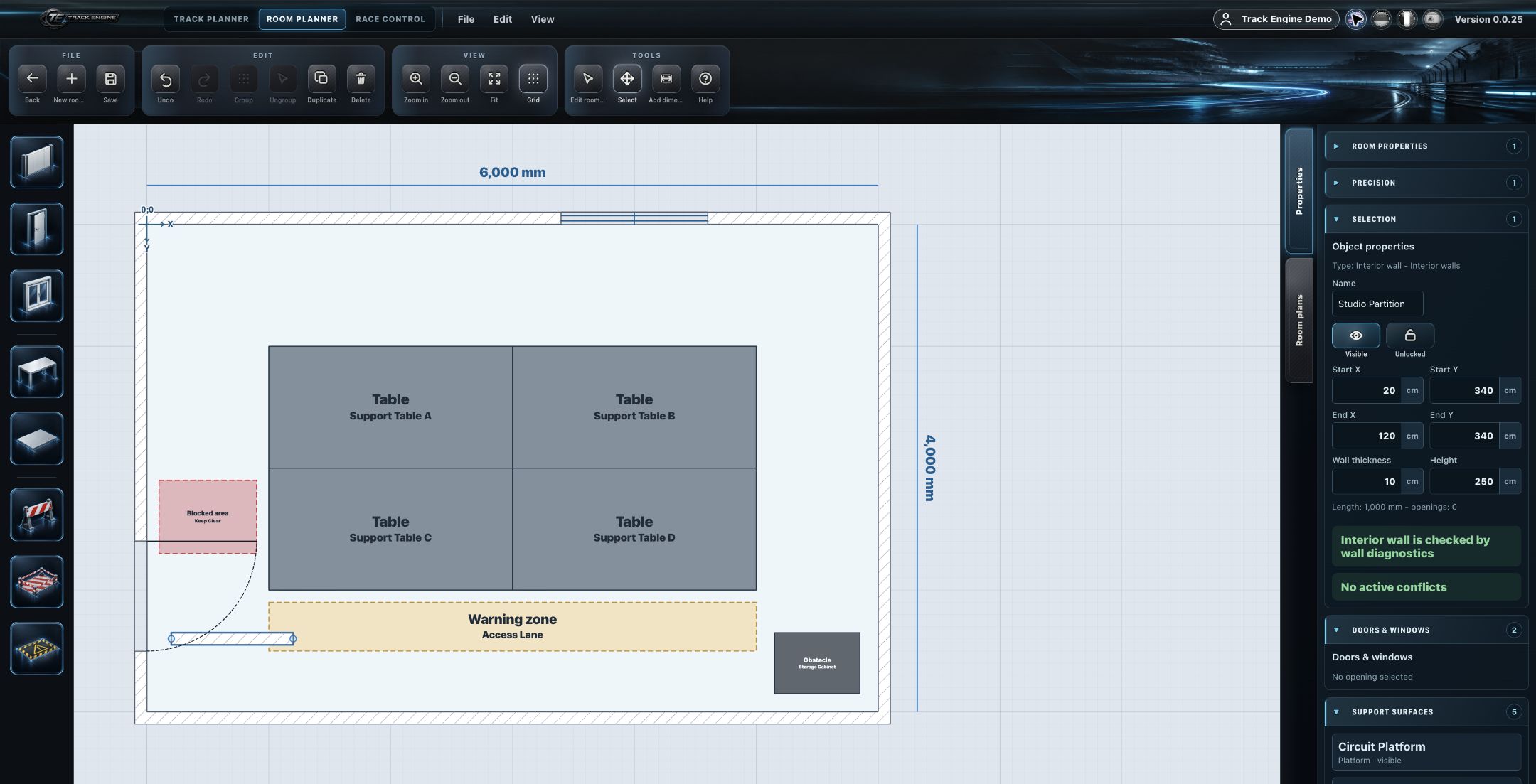
Properties
Editable for an interior wall: start coordinate (X, Y), end coordinate (X, Y), height, and thickness.
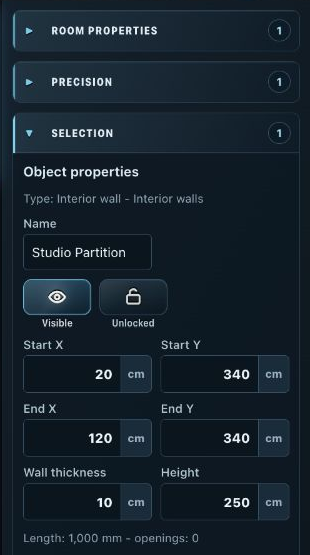
Door
A door is always assigned to a specific wall.
Door
Insert here
In the room
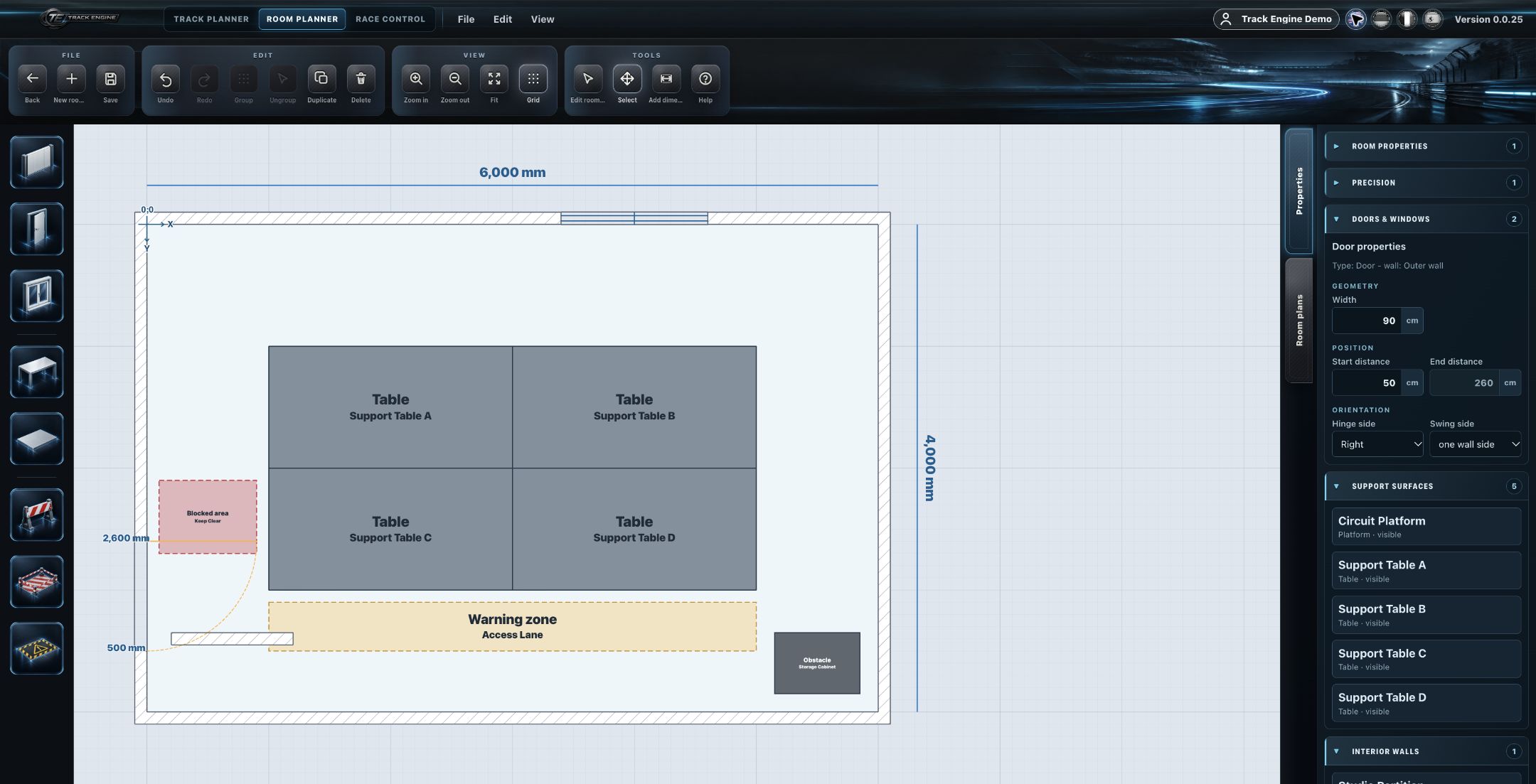
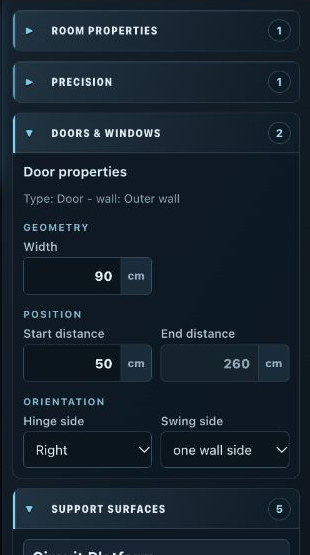
Properties
Editable for a door: width, position along the wall, hinge side, and opening side.
Window
A window is likewise assigned to a specific wall.
Window
Insert here
In the room
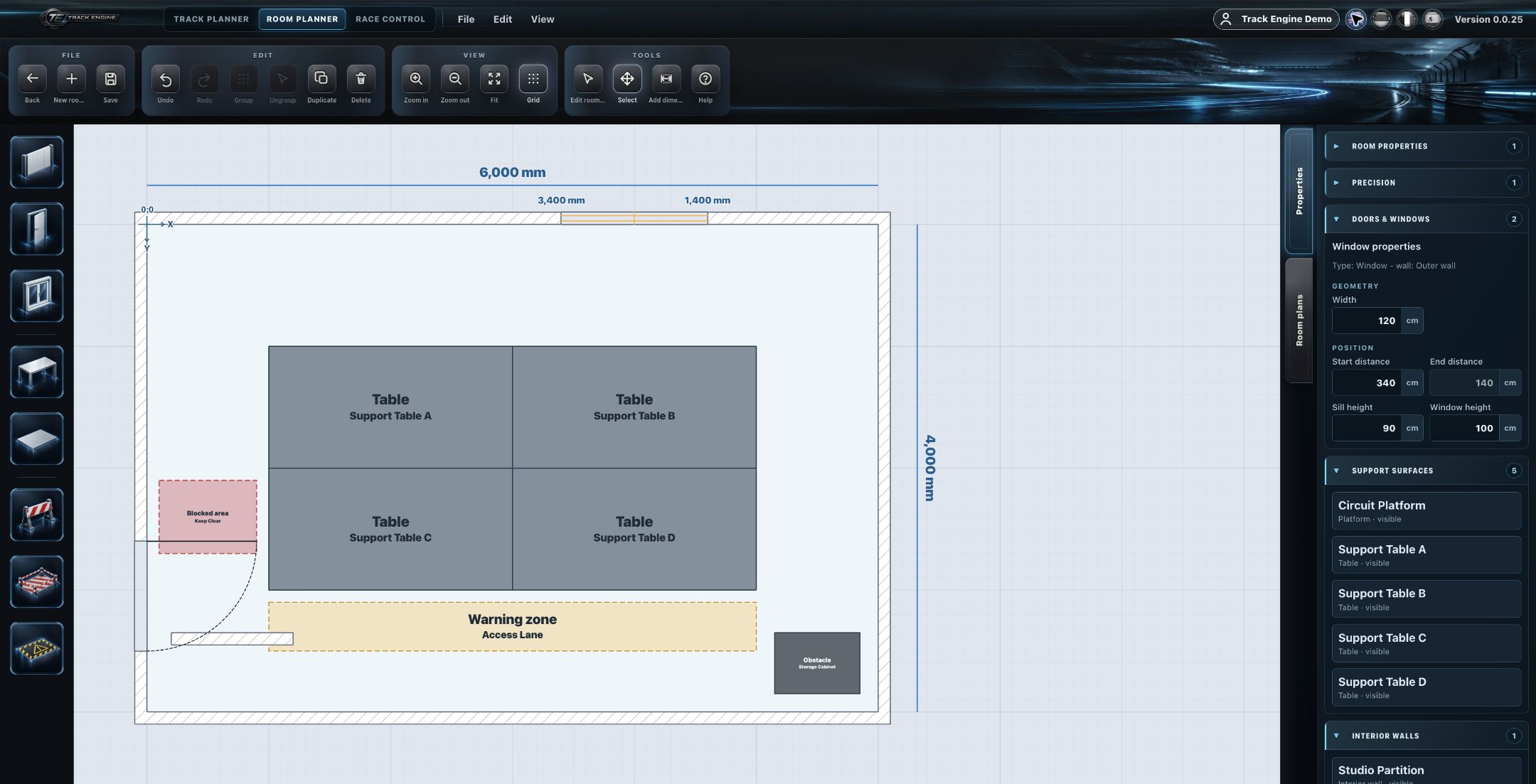
Properties
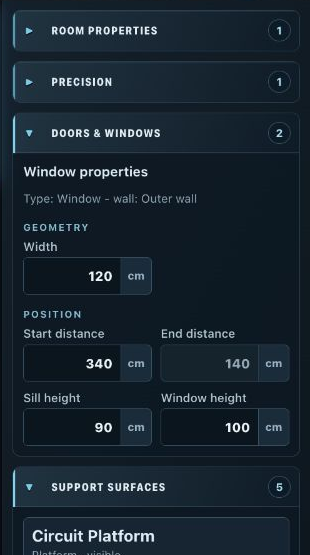
Editable for a window: width, height, position along the wall, and sill height — windows use different properties than doors and have no hinge side or opening side.
Placement is constrained by room/wall geometry
Where an interior wall, door or window can be placed is constrained by the room and wall geometry.
Calculated, non-editable values
Some values are derived from other geometric inputs and are therefore displayed as calculated/read-only rather than freely editable. Example: if the distance to the previous corner point and an object's width are both set, the distance to the next corner point is calculated automatically.
Model physical elements accurately
Because the Room Planner represents real installation constraints, it's worth modeling interior walls, doors and windows as accurately as possible.
Related articles
Was this page helpful?